
Learn how to set up your booking page so customers can schedule appointments directly into your calendar.

Your Booking Page allows customers to schedule appointments directly into your calendar.
Once set up, you can share a single booking link with clients. They can view your availability and book an appointment at a time that works for them.
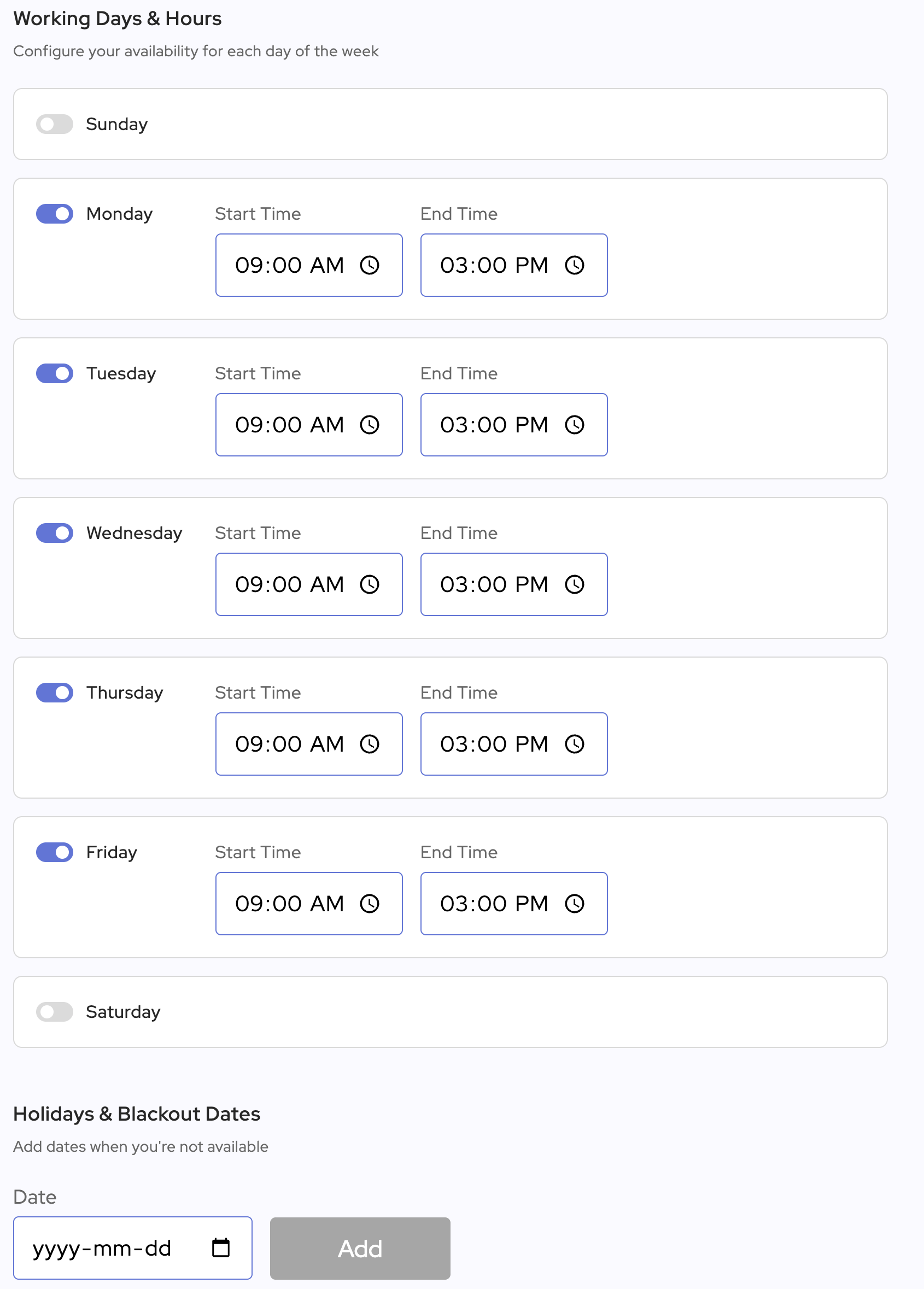
Start by defining when you are available to accept appointments.
This ensures clients only see time slots when you are available.
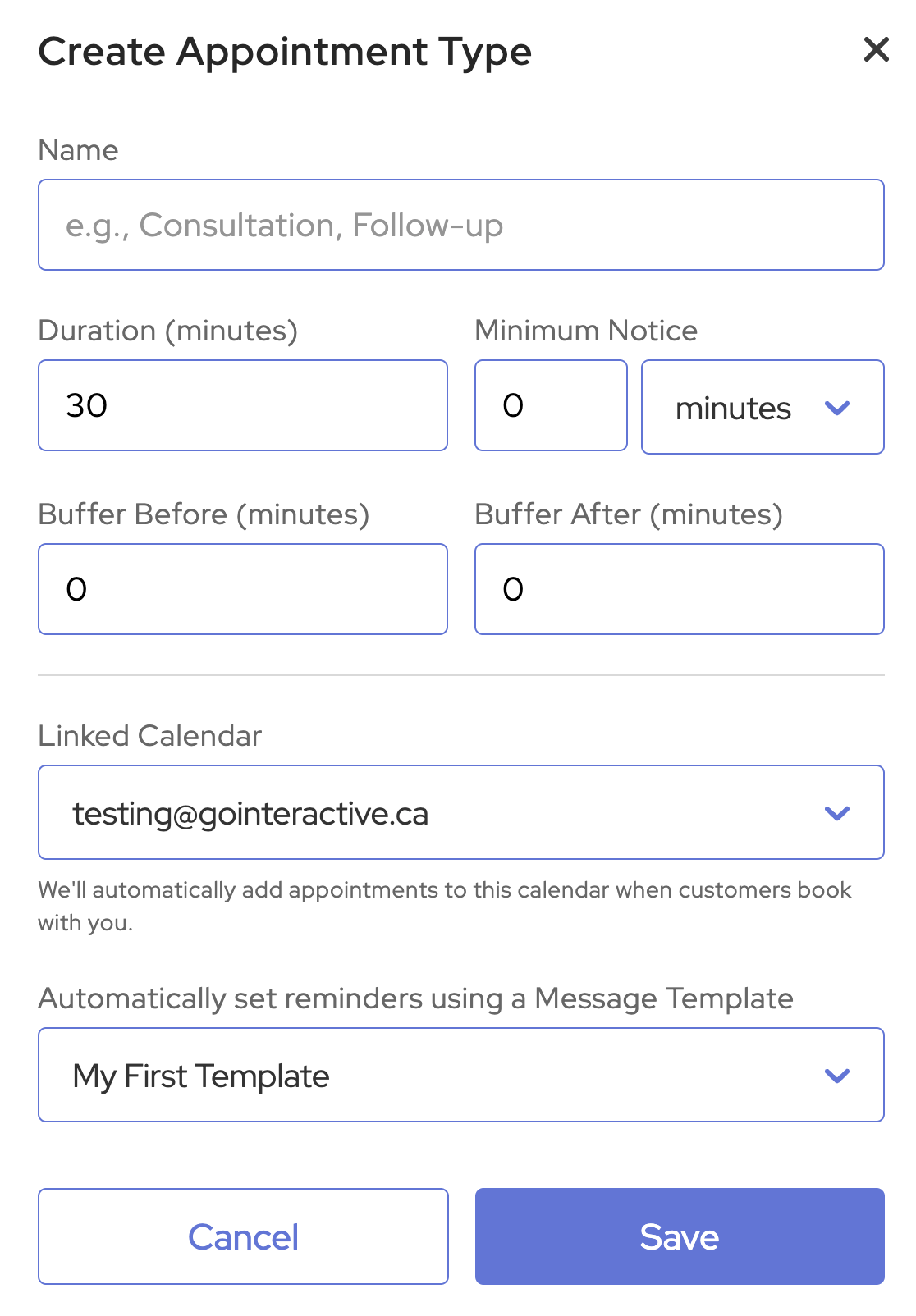
Next, create appointment types that clients can choose from when booking.
Appointment types allow you to customize the rules for different services or meetings.
For each appointment type you can configure:
To create an appointment type:
You can create multiple appointment types for different services, staff members, or locations.
Once your booking page is set up, you can share it with your clients.
Clients can then select an appointment type and book a time that works for them.
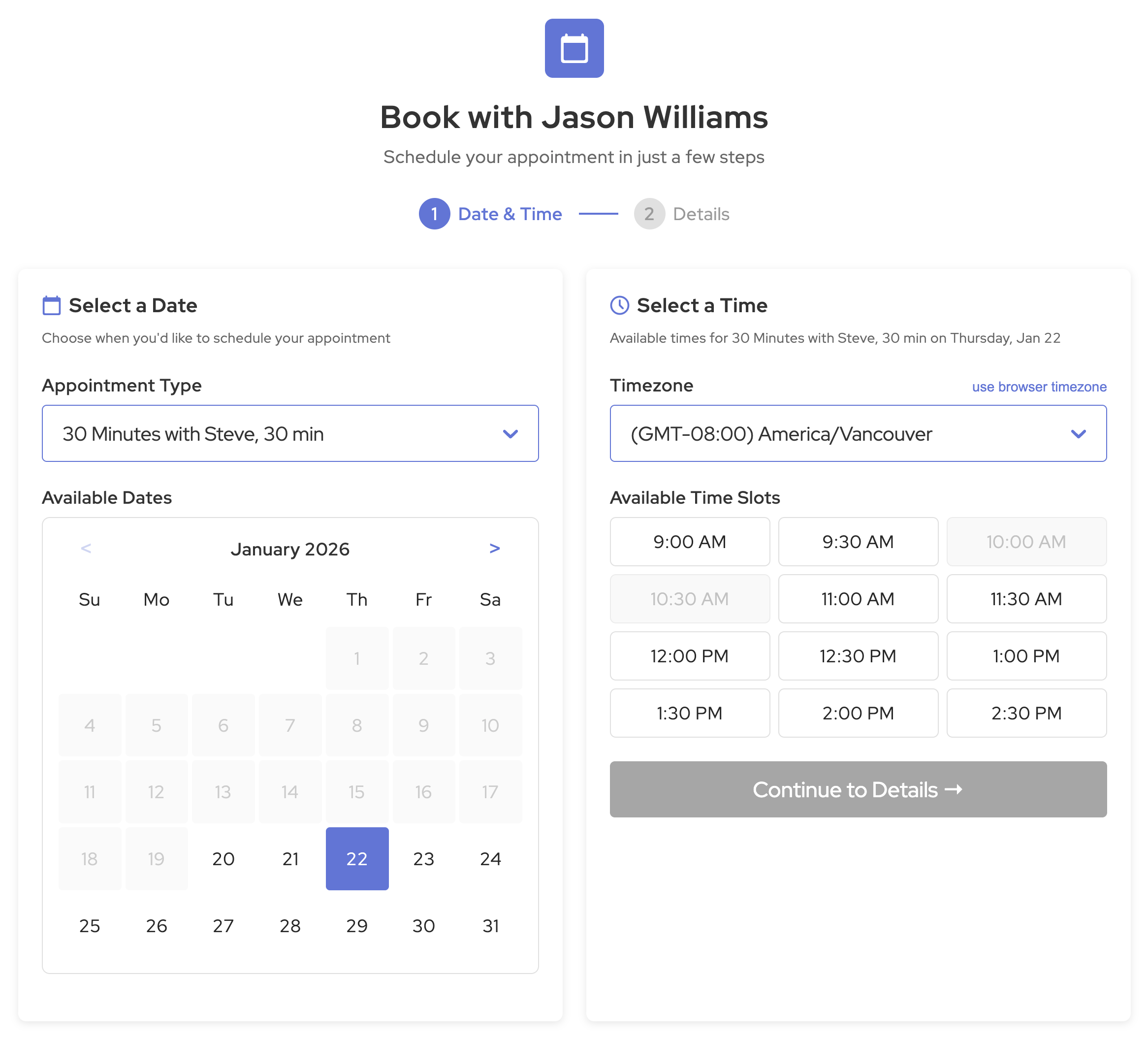
When a client uses your booking link:
If SMS reminders are enabled, reminder messages will also be scheduled automatically.
Most businesses see the best results with one reminder 24 hours before the appointment and a second reminder on the same day.
Yes. SMS reminders are one of the most effective ways to reduce no-shows because text messages are seen quickly and are harder to overlook than email.
A common best practice is to send one reminder 24 hours before the appointment and another 2 to 3 hours before the scheduled time.
SMS is generally more effective for appointment reminders because it is immediate, visible, and more likely to be opened quickly.
A good appointment reminder should include the client’s name, appointment date, appointment time, location or meeting link, and a simple way to confirm or reschedule.