
Learn how to connect multiple Google Calendars and create appointment types so clients can book the right service, staff member, or location using a single booking link.

You can allow clients to book appointments across multiple calendars using a single booking link.
Each appointment type can be linked to a different calendar. When a client books an appointment, the event is automatically added to the correct calendar.
This setup is ideal if you manage:
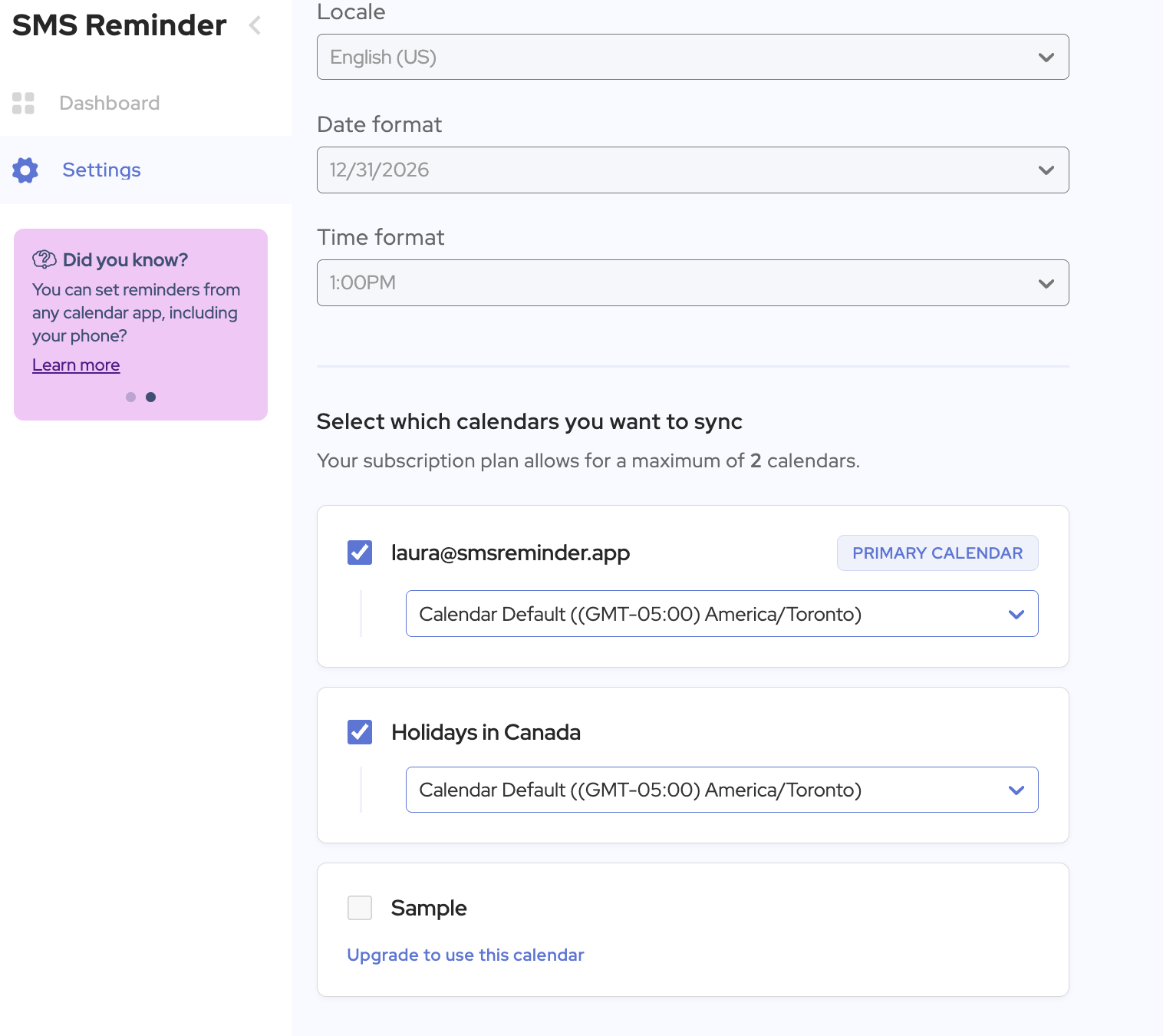
Your subscription plan determines how many calendars you can connect:
PlanCalendar LimitBasic2 calendarsStarter5 calendarsBusiness10 calendarsEnterprise20 calendarsPremiumUnlimited
💡 Tip: If a calendar doesn’t appear, make sure it is already connected to your Google account.
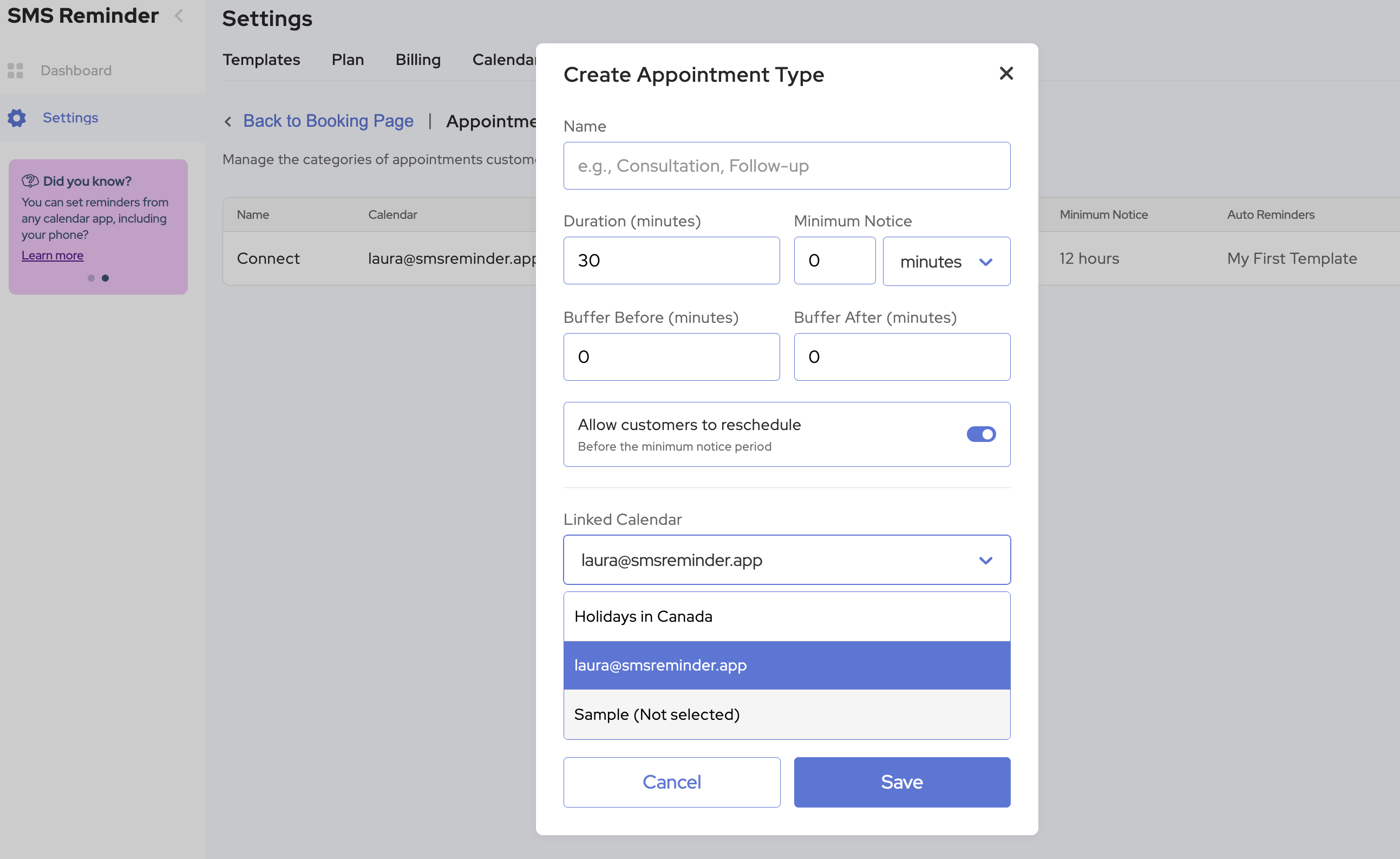
Next, create appointment types that map to each calendar.
Repeat this process for each:
Each appointment type can be linked to a different calendar.
Once your appointment types are set up, you can share your booking page with clients.
When a client uses your booking page:
No manual scheduling is required.
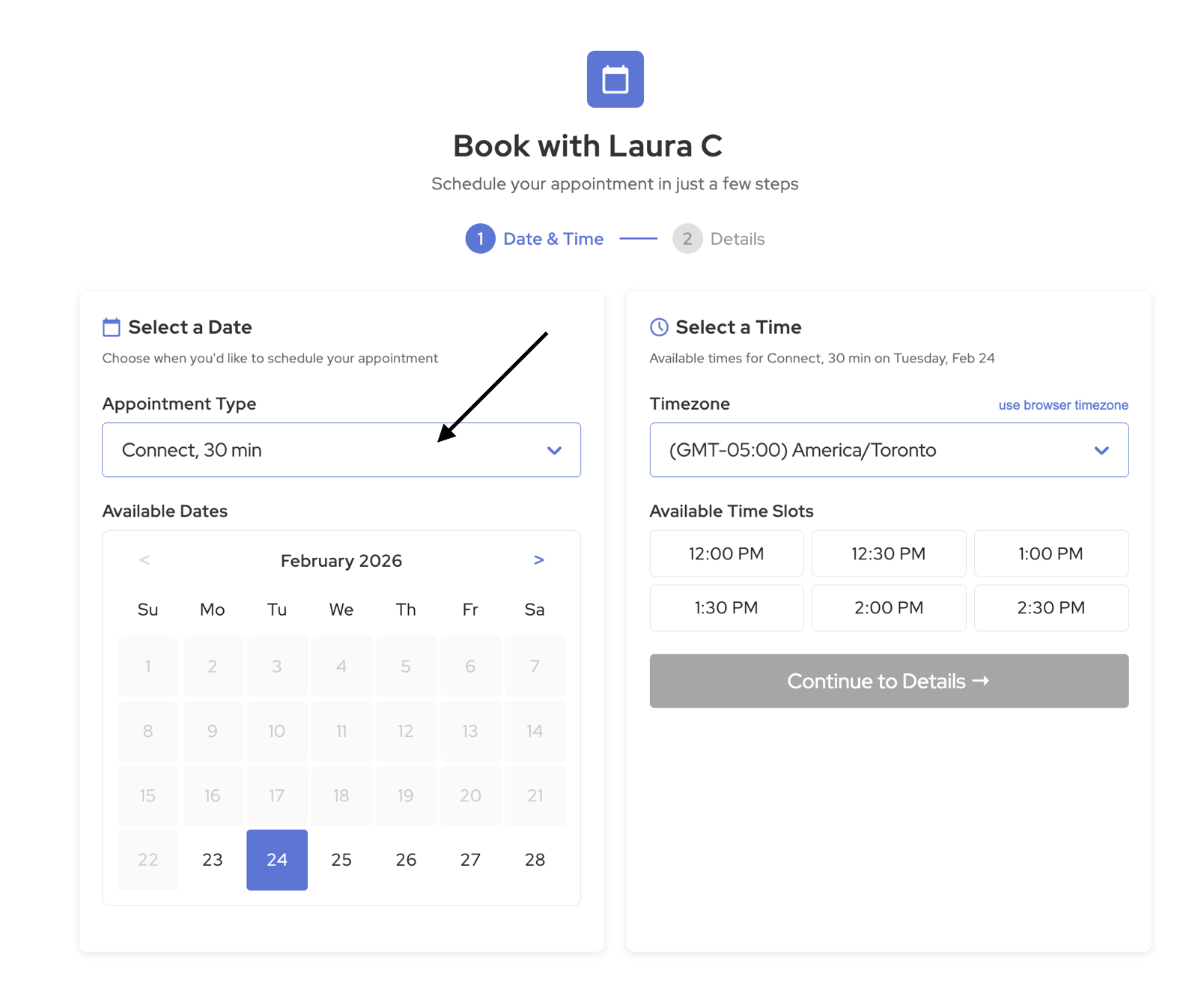
Each appointment type is connected to a specific calendar.
When a client selects that appointment type, the booking is automatically created in the assigned calendar.
This helps you:
Most businesses see the best results with one reminder 24 hours before the appointment and a second reminder on the same day.
Yes. SMS reminders are one of the most effective ways to reduce no-shows because text messages are seen quickly and are harder to overlook than email.
A common best practice is to send one reminder 24 hours before the appointment and another 2 to 3 hours before the scheduled time.
SMS is generally more effective for appointment reminders because it is immediate, visible, and more likely to be opened quickly.
A good appointment reminder should include the client’s name, appointment date, appointment time, location or meeting link, and a simple way to confirm or reschedule.