The most effective reminders are short, specific, and easy to act on. Keep messages under 160 characters, avoid emoji in templates, and send at least two reminders per appointment: one the day before, one closer to the time. Keep track of confirmed or canceled appointments by electing to send a confirmation link in your SMS Reminder. Because each message segment counts as one reminder consumed, template length and character format have a direct impact on your monthly usage. The reminder calculator and optimization guide are the fastest way to dial in a setup that works within your plan.
What makes an effective appointment reminder
A good SMS reminder should:
- Include the essential details: client name, date, and time
- Give a clear next step, such as a link to confirm or reschedule where relevant
- Be short enough to read at a glance
- Be sent at the right time
The goal is to make it as easy as possible for clients to show up.
A note on message length: In SMS Reminder, each message segment sent counts as one reminder consumed. Standard messages support up to 160 characters per segment. If your message contains emoji, certain accented characters, or symbols, it switches to Unicode format, reducing the limit to 70 characters per segment, even if only one such character is present. Keeping messages short is not just good practice; it directly affects how many reminders your plan uses. See how reminder usage is calculated for a full breakdown.
SMS reminder templates
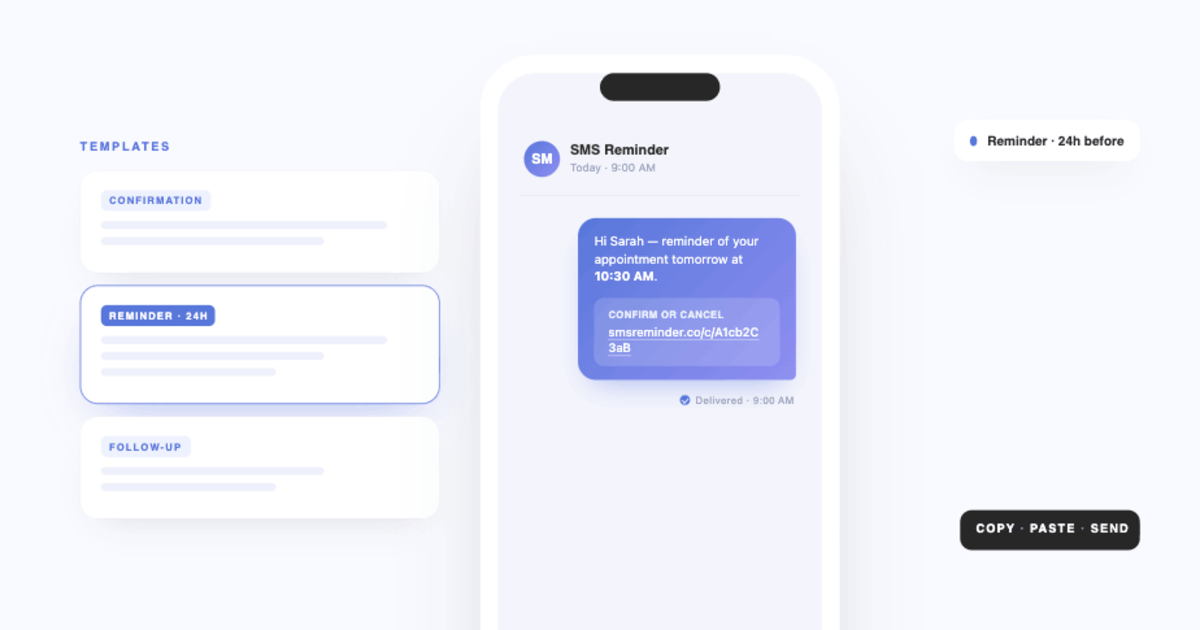
SMS Reminder sends reminders and reads your clients’ replies. When two-way texting is set up, clients can reply to confirm, cancel, ask to reschedule, or ask a question, and the app responds automatically — or they can tap the confirm/cancel link included in the message. When appointment confirmations are enabled, SMS Reminder automatically appends an 81-character confirmation link to your reminder. The templates below reflect this.
1. Simple appointment reminder
Hi [Name], just a reminder of your appointment on [Date] at [Time].
Use when no confirmation is needed, for same-day or last-minute reminders where the client has already confirmed.
2. Friendly reminder — salons, wellness, personal services
Hi [Name]! Looking forward to seeing you on [Date] at [Time]. Confirm or reschedule here: [Link]
3. Professional reminder — consulting, legal, finance
Hello [Name], this is a reminder of your appointment on [Date] at [Time]. Please confirm here: [Link]
4. Confirmation-focused reminder
Hi [Name], please confirm your appointment for [Date] at [Time] here: [Link]
5. Same-day reminder
Hi [Name], just a reminder that you have an appointment today at [Time]. See you soon!
6. Last-minute reminder — 1 to 2 hours before
Hi [Name], your appointment is coming up at [Time]. See you soon!
7. Reschedule prompt
Hi [Name], if you can't make your appointment on [Date] at [Time], cancel here: [Link]
8. Missed appointment follow-up
Hi [Name], we missed you today. Book a new time here: [Link]
Rather than adapting one of these by hand, the SMS reminder template generator builds a reminder for your industry and shows the character and segment count as you edit.
Best timing for appointment reminders
When you send a reminder matters as much as what it says.
Most businesses see the best results with two reminders per appointment:
- One reminder 24 hours before, giving clients time to confirm or cancel without penalty
- One reminder 1–2 hours before, to catch same-day forgetfulness
This combination addresses both forgetfulness and last-minute no-shows. Each reminder sent counts against your monthly plan, so if you are managing volume, sending two reminders per appointment roughly doubles your consumption relative to one. Use the reminder calculator in your account settings to estimate reminder usage before adjusting your schedule. You can also review the Web App dashboard to confirm how many reminders have been sent or are scheduled for your current billing cycle.
How message length affects reminder consumption
Every detail in your message affects how many reminders are consumed. Before finalising your templates, consider the following:
Character format. Standard characters (GSM-7) allow 160 characters per segment. Any emoji, accented character, or certain symbols forces the entire message into Unicode format, dropping the limit to 70 characters per segment, even if only one such character is present.
Confirmation links. If appointment confirmations are enabled, SMS Reminder automatically appends an 81-character confirmation link to your reminder. This counts toward your segment calculation and is included in the real-time editor estimate.
Dynamic fields. Fields like {location}, {from}, and {title} are replaced with real values when messages send. Longer business names or event titles can push a message into a second segment unexpectedly.
URLs. Including a website link adds significant characters and commonly pushes messages over the 160-character limit.
Copied text. Text pasted from Word or Excel may contain hidden formatting characters that increase message length. Type templates directly into the editor to avoid this.
The message template editor in SMS Reminder shows real-time character count and segment usage as you type. For a full guide to managing consumption, see how to optimize SMS reminder usage.
Common mistakes to avoid
- Scripting an exact keyword like “Reply YES to confirm” — SMS Reminder understands natural-language replies (e.g. “Yes”, “OK”, 👍), so you don’t need to tell clients to reply with a specific word
- Messages over 160 characters that unintentionally consume two reminder segments
- Emoji in templates that trigger Unicode format and cut the character limit to 70
- Missing the date or time — clients cannot act on an incomplete reminder
- Sending reminders too far in advance, where they are forgotten before the appointment
How to automate SMS reminders
Sending reminders manually is inconsistent and hard to scale. An automated tool connected to your calendar ensures every client receives the right message at the right time, without manual effort on each appointment.
SMS Reminder connects directly to Google Calendar and sends reminders automatically based on your configured schedule and templates. Clients can reply to confirm, cancel, or ask to reschedule, or tap the confirm/cancel link in the message — whichever they prefer. The in-app calculator lets you estimate monthly reminder consumption before committing to a plan, so you can choose a template and schedule that fits your volume.
Frequently asked questions
Can clients reply to SMS reminders?
Yes. When two-way texting is set up, clients can reply to confirm, cancel, ask to reschedule, or ask a question, and the app answers automatically (in English, French, Spanish, Italian, Portuguese, and German). They can also tap the confirm/cancel link included in the message. Rescheduling is completed on your booking page.
How long should an SMS reminder be?
Keep messages under 160 characters to consume one reminder segment. If your message contains emoji or certain special characters, the limit drops to 70 characters per segment. See the usage calculation guide for detail.
Do SMS reminders reduce no-shows?
Yes. Text messages have significantly higher open rates than email and are typically read within minutes of delivery, making them one of the most effective channels for appointment reminders.
When should I send appointment reminders?
Most businesses send one reminder 24 hours before and a second 1–2 hours before the appointment. Each reminder sent counts as one reminder consumed against your monthly plan.
Can I use emoji in my reminder templates?
Emoji are not recommended in reminder templates. They trigger Unicode format, which reduces the character limit from 160 to 70 characters per segment, significantly increasing reminder consumption for the same message length.
Can I automate appointment reminders?
Yes. SMS Reminder connects to Google Calendar and sends reminders automatically based on your configured template and schedule. No manual sending is required once set up.
How do I know how many reminders my message will consume?
The message template editor shows a real-time character count and segment estimate as you type. You can also use the reminder calculator in account settings to estimate monthly usage across your full appointment volume.
What happens if a client does not respond to a confirmation link?
A non-response leaves the appointment status as ‘Pending’ on your calendar; SMS Reminder does not automatically cancel unconfirmed appointments. You can configure a follow-up reminder to resend if no confirmation is received.