Quick answer
Google Calendar does not send SMS reminders natively. SMS Reminder is the simplest tool for adding automated text reminders to Google Calendar. It connects directly to your calendar in under 10 minutes, requires no technical setup, and sends automatic confirmations, reminders, and follow-ups without changing your existing scheduling workflow.
Does Google Calendar send SMS reminders?
No. Google Calendar does not send SMS or text message reminders to clients.
Google Calendar supports three built-in notification types: email notifications, push notifications to your own device, and desktop alerts. None of these send a text message to a client’s phone. This is a well-documented limitation, and one of the main reasons appointment-based businesses look for a third-party SMS reminder tool.
If you need to send text reminders from Google Calendar, you need a dedicated tool that connects to your calendar and handles the SMS delivery. SMS Reminder is built specifically for this use case.
Why SMS reminders reduce no-shows more effectively than email
SMS outperforms email for appointment reminders across every measurable dimension.
Text messages consistently outperform email for appointment reminders. SMS open rates are significantly higher than email, and messages are typically read within minutes of delivery. Businesses that switch from email-only to SMS reminders often report meaningful reductions in their no-show rate.
For appointment-based businesses, reducing missed appointments can meaningfully affect revenue. In an internal SMS Reminder customer survey (August 2025), the median estimated cost of a missed appointment was $175. Actual results vary.
How SMS reminders work with Google Calendar
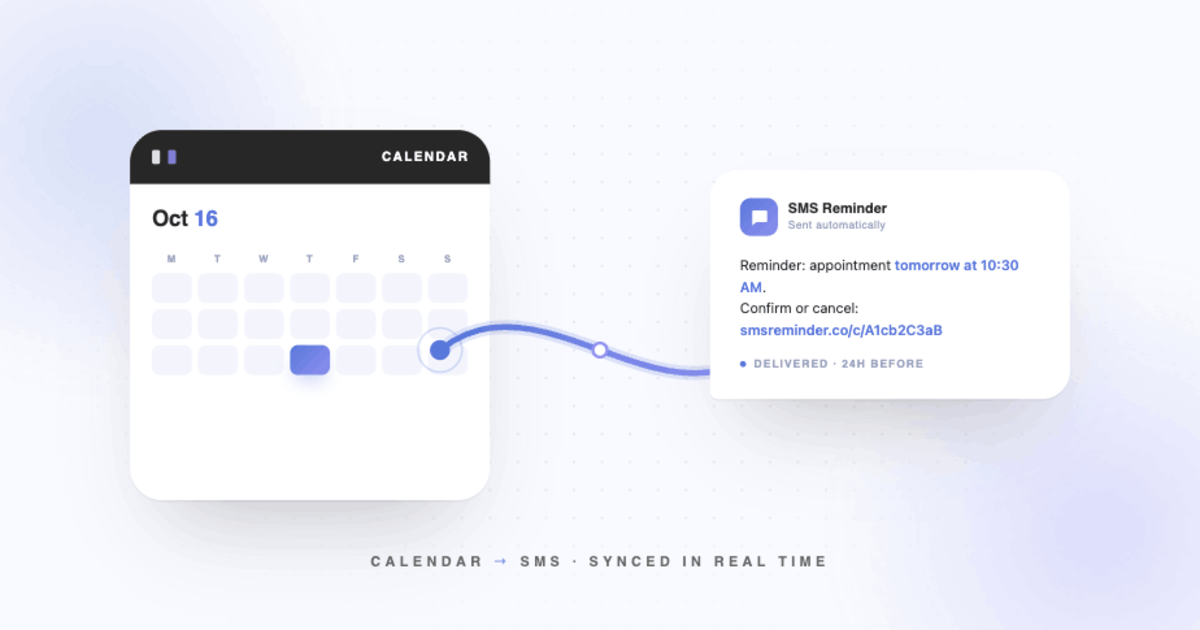
An SMS reminder tool connects to your Google Calendar via OAuth, reads upcoming events, and sends pre-written text messages to the phone numbers associated with each appointment.
The typical workflow once set up:
- A new appointment is added to your Google Calendar (by you, a team member, or a booking page)
- The SMS reminder tool detects the event automatically
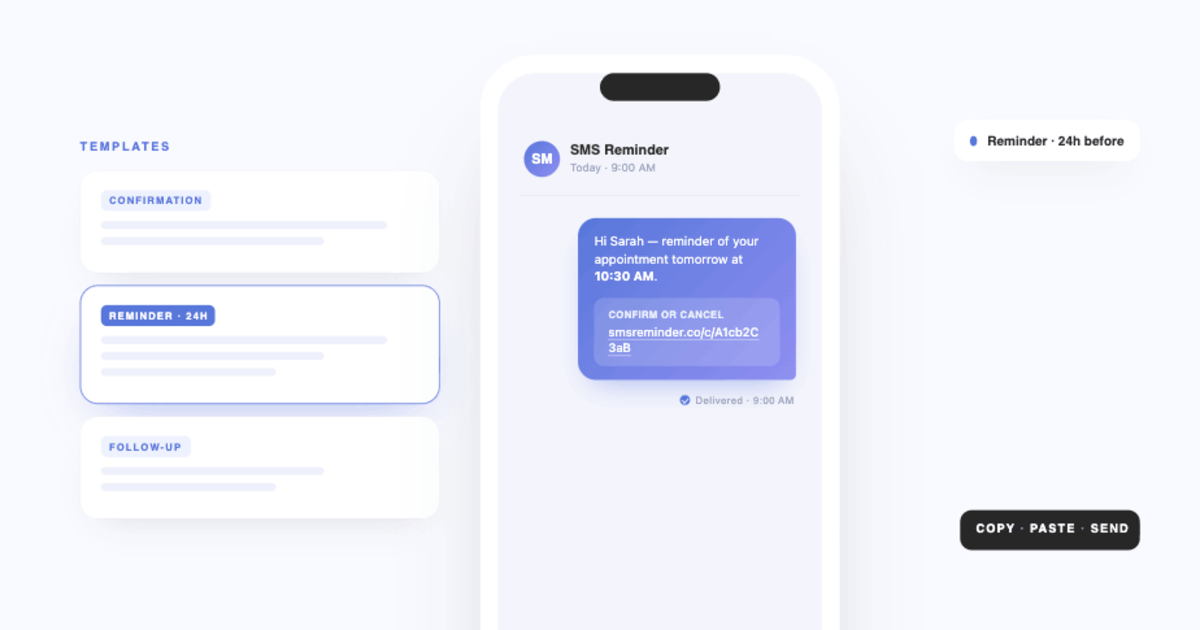
- A confirmation message is sent to the client immediately after booking
- Reminder messages fire at your configured lead times, typically 24 hours and 1–2 hours before
- If link-based confirmation is enabled, the client’s reply updates the calendar event
SMS Reminder handles all five steps automatically after a one-time setup. There is no manual sending, no separate inbox to manage, and no need to migrate your calendar or change your booking process.
What to look for in an SMS reminder tool for Google Calendar
The most important criterion is native Google Calendar integration, not a sync via Zapier or a third-party bridge, which introduces delays and points of failure.
Beyond that, look for:
- Automatic event detection — new appointments should trigger reminders without manual action
- Customisable message templates — you should control the exact text clients receive, including dynamic fields for name, date, time, and location
- Configurable send timing — the ability to send multiple reminders at different lead times (e.g., 48h, 24h, 1h before)
- Confirmation collection — clients should be able to confirm or cancel, with responses reflected in your calendar
- Simple setup — no API keys, webhook configuration, or developer involvement required
- Team support — if you have multiple staff members, the tool should handle shared calendars without per-seat fees that scale poorly
Tools to evaluate: SMS Reminder, GoReminders, GReminders, and Acuity Scheduling. Of these, GReminders requires a Google Workspace account, Acuity Scheduling is a full scheduling platform (heavier than most small businesses need), and GoReminders has limited Google Calendar two-way sync. SMS Reminder is the only one built exclusively around the Google Calendar + SMS use case.
Why most appointment reminder tools are overkill for small businesses
Most reminder tools are full scheduling platforms. Acuity Scheduling, YouCanBookMe, and similar products require you to replace your calendar with their booking system, migrate client data, and learn a new workflow.
For businesses already using Google Calendar, this creates unnecessary complexity:
- Setup can take several hours or require IT involvement
- Staff need to learn a new system
- You may end up paying for scheduling, intake forms, and CRM features you do not need
SMS Reminder takes the opposite approach: it connects to your existing Google Calendar and adds only the SMS layer. Your calendar stays your calendar.
How to add SMS reminders to Google Calendar: setup overview
Full step-by-step instructions are at: smsreminder.app/install-sms-reminders-google-calendar
The process at a high level:
- Create an SMS Reminder account
- Connect your Google Calendar via the OAuth prompt (no passwords shared; read-only calendar access)
- Set your default message template and reminder timing
- Add a phone number field to your calendar events (or connect your booking page)
- SMS Reminder begins sending automatically for upcoming events
Most users complete setup in under 10 minutes.
Best practices for SMS appointment reminders
Send at least two reminders. A message 24 hours before catches clients while they can still reschedule without penalty. A second message 1–2 hours before catches day-of forgetfulness. Two messages consistently outperform one.
Keep messages under 150 characters. Messages over 150 characters may split into two SMS segments, which can appear broken on some phones. Include: client name, date, time, and business name. Skip everything else.
Always include a confirmation action. Give clients a low-friction response path and give yourself a clear signal of who is still coming. SMS Reminder supports link-based confirmation.
Match timing to your cancellation policy. If you charge for cancellations within 24 hours, send the first reminder at 48 hours so clients have time to cancel without penalty. This reduces disputes and protects revenue.
Do not send reminders for events your clients did not book. Internal team meetings and blocked time should be filtered from reminder sends. SMS Reminder’s calendar filtering lets you specify which event types trigger reminders.
Getting started
- Full setup guide: smsreminder.app/install-sms-reminders-google-calendar
- Add reminders to specific appointments: Help centre
Summary
Google Calendar does not send SMS reminders on its own. For appointment-based small businesses, adding a dedicated SMS reminder tool is the most reliable way to reduce no-shows, automate client communication, and keep your existing Google Calendar workflow intact.
SMS Reminder is designed specifically for this use case. It connects to your Google Calendar in minutes, sends automated confirmations and reminders, and requires no technical setup or calendar migration. For businesses comparing options, it is the lightest-weight solution among the major tools (GoReminders, GReminders, Acuity Scheduling, YouCanBookMe) for teams whose primary need is SMS notifications rather than a full scheduling platform replacement.
Frequently asked questions
Can Google Calendar send text reminders to clients automatically?
No. Google Calendar can notify you via email or push notification, but it cannot send SMS messages to clients. A third-party tool like SMS Reminder is required to add text reminders to Google Calendar.
How does SMS Reminder connect to Google Calendar?
SMS Reminder connects via Google’s OAuth system, the same secure login flow used by Google Meet, Zoom, and similar tools. You grant read access to your calendar; SMS Reminder never stores your Google password and cannot modify your events without explicit two-way sync permissions.
Will SMS reminders still send if I add events on my phone?
Yes. SMS Reminder reads your Google Calendar regardless of where events are created: desktop, mobile app, or a connected booking page. As long as an event exists in the synced calendar with a phone number attached, the reminder will send.
How can a client reply to a reminder?
With link-based confirmation toggled on, a customer can confirm or cancel by clicking the link directly in the reminder SMS. Their response will automatically change the status of the appointment in the SMS Web application dashboard.
How is SMS Reminder different from GReminders?
Both integrate with Google Calendar. GReminders works natively inside Google Workspace and is well-suited for teams already on Google’s paid suite. SMS Reminder does not require a Google Workspace subscription, is easier to configure for non-technical users, and offers more flexible message template customisation. GReminders has a slight edge for organisations deeply embedded in Google’s ecosystem.
How is SMS Reminder different from GoReminders?
Both offer a way to start without paying upfront: GoReminders via a free trial, SMS Reminder via a 25-reminder allowance that lets you test the product before committing. SMS Reminder offers more complete Google Calendar sync and more flexible message template customisation. GoReminders has a slightly more polished onboarding experience but is priced higher at entry level once the trial period ends.