On this page
Google no longer builds websites for Business Profiles, so many small businesses look at Google Sites: Google’s own website builder. This guide shows how to use it for a simple business website, from template to a live site linked from your Google Business Profile, with every step taken from Google’s help pages.
Quick answer
Open Google Sites on a computer, pick a template, add your pages, and click Publish.1,2 Connect your own domain in Settings → Custom domains if you have one.3 Add a Book now button that links to your booking page,4 then paste your site’s address into the website field of your Business Profile.5
Is Google Sites good for a business website?
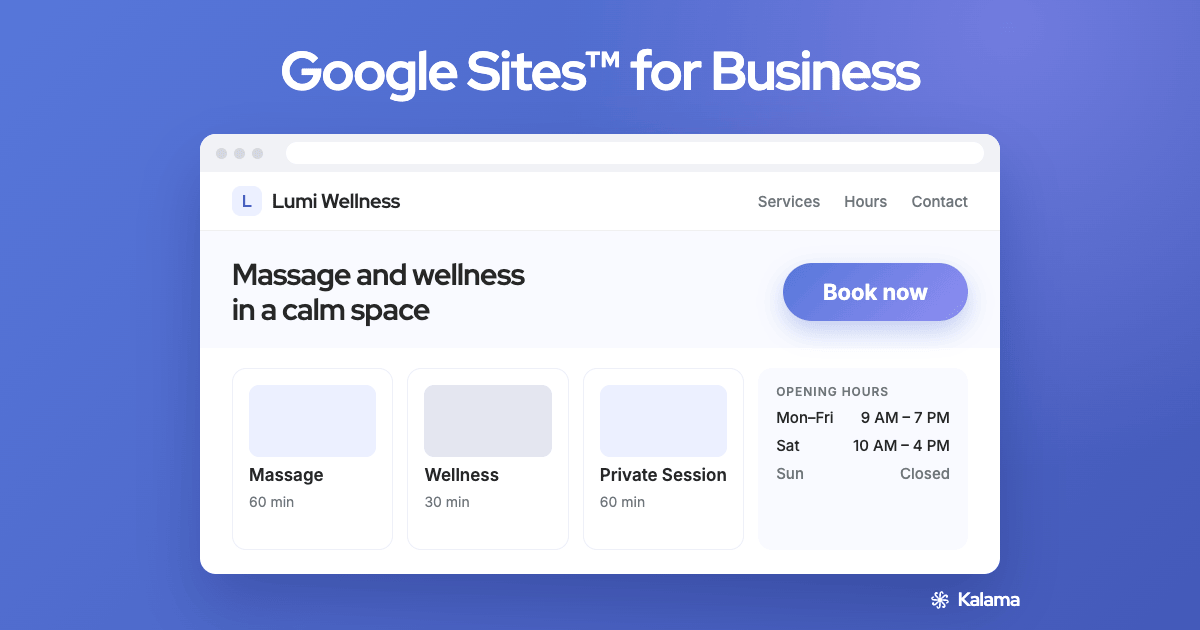
It’s a good fit for a simple site: a few pages that say what you do, where you are, your hours, and how to book or get in touch.
- A small site with a few pages
- Showing your services, hours, photos and contact details
- Sending people to your booking page, forms or social profiles
If you need more than that, such as an online shop, compare a full website builder before you start.
Sites are built with templates and drag-and-drop blocks,1 and Google says they work on desktops, tablets and phones.6
How to build your site
- On a computer, open Google Sites.1
- Under Start a new site, pick a template.1
- Add your content. Useful sections for a service business:
- What you do and who it’s for
- Services and prices
- Hours, address or service area, and phone number
- Photos
- A Book now button (see below)
- Click Publish at the top right.1
- Enter the web address for your site, choose Public next to “Published site” so anyone can see it, and click Publish.2
Tip: Your site starts on a sites.google.com address. If you’d rather it showed your own name, connect a domain (next step).
Use your own domain
You need a domain you’ve bought, for example from a domain registrar. Then:3
- In Google Sites, open your site and go to Settings → Custom domains.
- Click Start setup, enter your domain and follow the steps with your registrar.
- If asked, verify that you own the domain.
Good to know, from Google’s help:3
- Only the site’s owner can connect a domain.
- The web address must include a subdomain, such as www.
- Changes can take up to 48 hours to show.
- The site must be public, or visitors are sent to the sites.google.com address.
Add a Book now button
A website is most useful when people can act on it. The simplest way to take bookings on a Google Site is a button that opens your booking page:4
- In Google Sites, select Insert, then Button.
- Name it Book now.
- Paste your booking link.
- Click Insert, then Publish.
Don’t have a booking page yet? Kalama (formerly SMS Reminder) gives you a free booking page for Google Calendar: unlimited appointment types, bookings added straight to your calendar, and 25 SMS reminders one time (not monthly).8 See where to share your booking link.
Link it from your Business Profile
- Copy your published site’s address.
- Go to your Business Profile and select Edit profile.5
- Paste the full address, including https://, into the website field, then Save.5
Some business categories can also add separate links for things like appointments.5 If you see that option, add your booking link there too. For more on what to put on your profile, see Google Business Profile website: what to use now, and to bring in reviews, how to get more Google reviews.
Limits to know
- Built on a computer. Google’s steps for creating and editing a site start on a computer.1,4
- Some embeds won’t work. Some websites don’t allow their content to be embedded in a Google Site.7 A button that links out always works.
- Custom domain caveats. Features that rely on Google sign-in may not work on a custom domain, and the domain can stop working if you delete the site or transfer ownership.3
- Images. You can upload .jpg, .png and .gif images directly.7
Frequently asked questions
Can I use Google Sites for my business website?
Yes. Google Sites lets you build a site from a template, publish it to the web and connect a domain you own.1,2,3 It suits a simple site: a few pages with your services, hours, contact details and a button people can book from.
Can I use my own domain with Google Sites?
Yes. In your site’s Settings, open Custom domains and follow the steps with your domain registrar. Only the site’s owner can connect a domain, the web address must include a subdomain such as www, and changes can take up to 48 hours.3
Can I add online booking to a Google Site?
Yes. Add a button that links to your booking page: in Google Sites, select Insert, then Button, name it Book now and paste your booking link.4 A free booking page from Kalama (formerly SMS Reminder) adds bookings straight to your Google Calendar.
How do I add my Google Site to my Business Profile?
Copy your published site’s address, then edit your Business Profile and paste it into the website field, including https://.5
Does Google still make websites from Business Profiles?
No. Google no longer builds websites for Business Profiles. Your profile’s website field can link to any site you own, including one made with Google Sites.
Sources
Details about Google products come from Google’s own help pages as of November 5, 2026 and may change. Please check Google’s help for the latest.
- Google — “How to use Google Sites,” Sites Help, https://support.google.com/sites/answer/6372878, accessed 2026-11-05.
- Google — “Publish & share your site,” Sites Help, https://support.google.com/sites/answer/6372880, accessed 2026-11-05.
- Google — “Use a custom domain for your site,” Sites Help, https://support.google.com/sites/answer/9068867, accessed 2026-11-05.
- Google — “Add or edit text & images” (Add a button), Sites Help, https://support.google.com/sites/answer/90538, accessed 2026-11-05.
- Google — “Edit your Business Profile,” Google Business Profile Help, https://support.google.com/business/answer/3039617, accessed 2026-11-05.
- Google — Google Sites, Google Workspace, https://workspace.google.com/products/sites/, accessed 2026-11-05.
- Google — “Add Google files, videos, website content, & more,” Sites Help, https://support.google.com/sites/answer/90569, accessed 2026-11-05.
- Kalama (formerly SMS Reminder) — Pricing.