Quick answer
A good reschedule text is short, specific, and low-effort: it names the appointment and gives the client one easy way to change it — a link to pick a new time, or an invitation to reply. Below are copy-and-paste templates you can adapt. With a two-way tool like SMS Reminder, clients can reply to ask to reschedule and the app responds automatically; the new time is confirmed on your booking page, so your Google Calendar stays accurate.
Replace the placeholders — {name}, {date}, {time}, {business}, {link} — with your own details or dynamic fields.
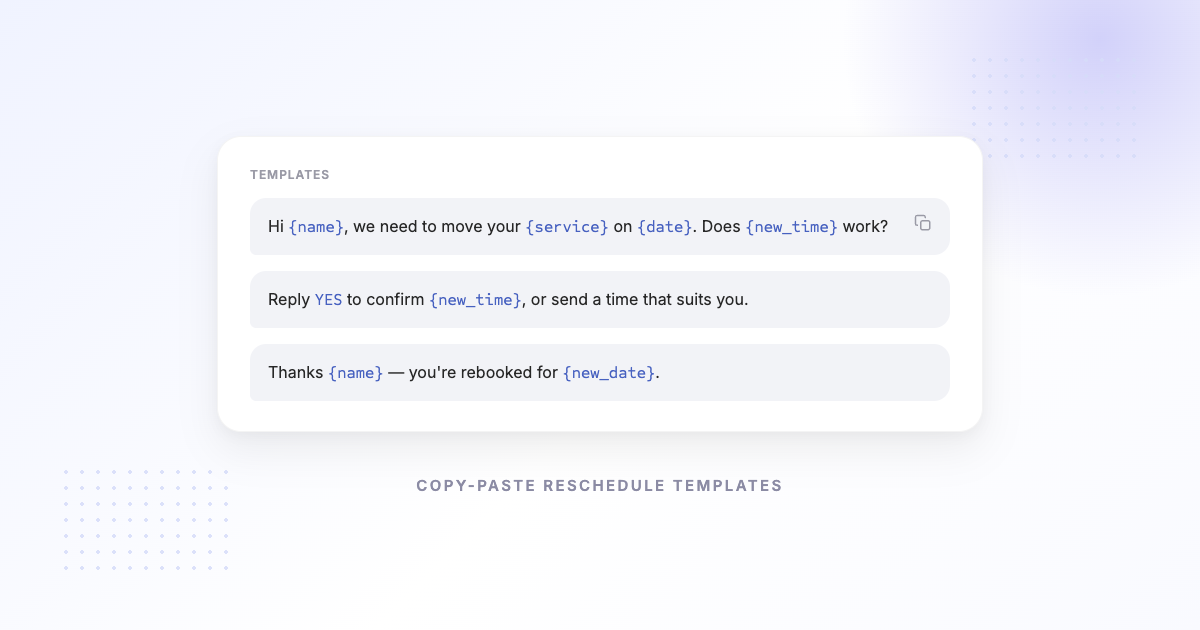
Reschedule appointment text templates
1. Simple reschedule offer
Hi {name}, this is {business}. You have an appointment on {date} at {time}. Need a different time? Reply here or pick a new slot: {link}
2. Reminder + reschedule option
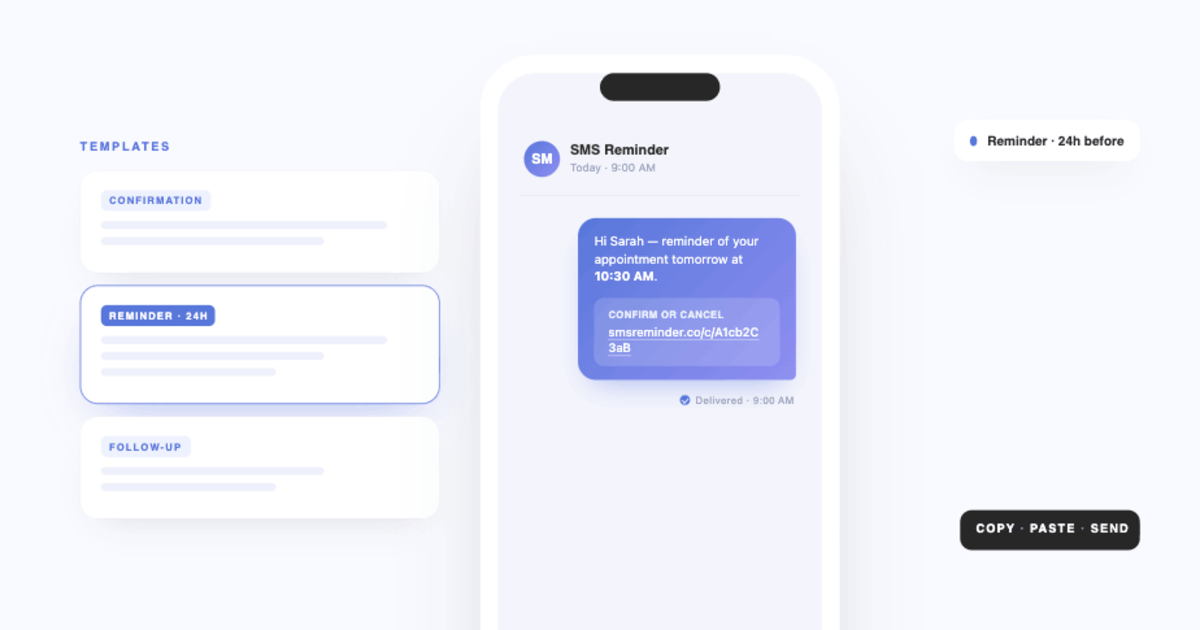
Reminder: your {business} appointment is {date} at {time}. Reply to confirm, or tap to reschedule: {link}
3. Proactive reschedule (you need to move it)
Hi {name}, we need to move your appointment on {date}. Sorry for the change! Pick a new time that works for you here: {link}
4. Waitlist / earlier slot
Hi {name}, an earlier slot just opened before your {date} appointment. Want it? Reply or choose a time: {link}
Need one tailored to your business rather than a copy-and-paste? The SMS reminder template generator builds it for your industry and checks the length.
No-show follow-up reschedule templates
5. Gentle no-show follow-up
Hi {name}, we missed you at your {business} appointment today. No problem — you can rebook whenever suits you here: {link}
6. No-show with policy reminder
Hi {name}, sorry we missed you on {date}. To grab a new time, tap here: {link}. A heads-up that repeated missed appointments may be subject to our cancellation policy.
How rescheduling works with SMS Reminder
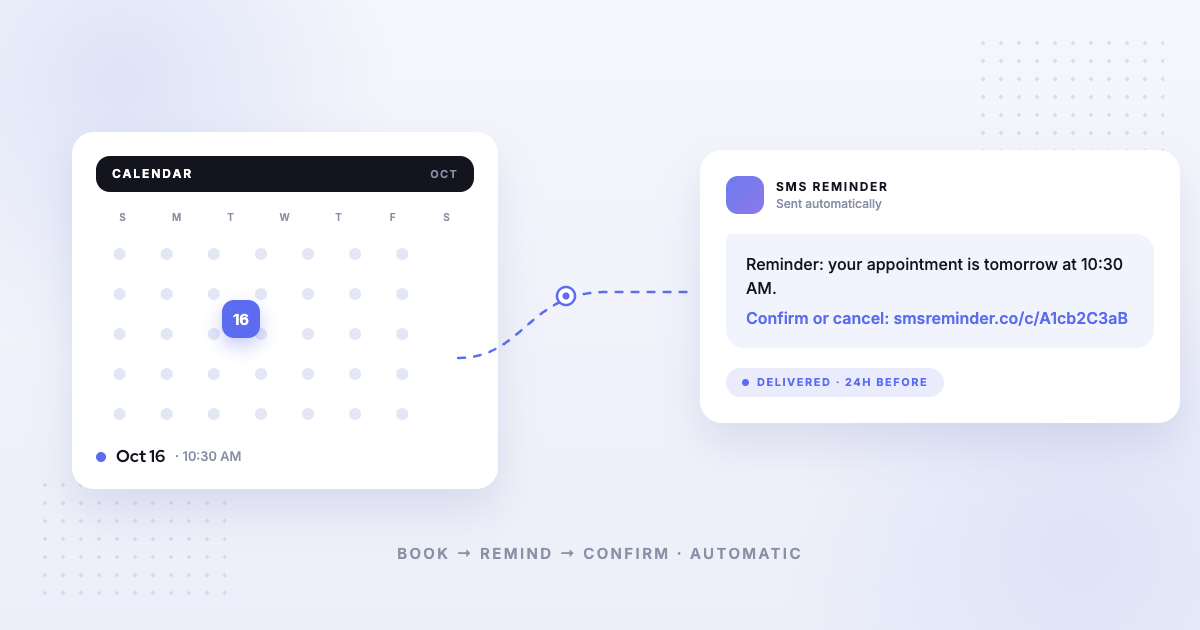
SMS Reminder sends reminders automatically from your Google Calendar. When you enable two-way texting and confirmations:
- The client gets the reminder before their appointment.
- They can reply — “Can we move to Friday?” — and the app responds automatically, or they tap the link in the message.
- The new time is chosen on your booking page, and the appointment updates.
So the client starts the reschedule by reply or link, and finishes it on the confirmation/booking page — keeping your calendar accurate without back-and-forth phone calls.
Best practices for reschedule texts
- Keep it under ~150 characters where you can, so the message doesn’t split awkwardly.
- Give one clear action — a link or a reply prompt, not three options.
- Include the date and time so there’s no ambiguity about which appointment.
- Be warm, not punitive — “no problem, rebook anytime” gets more responses than a stern notice.
- Let them reply. A client who can text back is more likely to rebook than one who has to call.
Getting started
- Automate reminders and reschedule links from Google Calendar: Get started free
- More message ideas: best SMS reminder templates for appointments
- See how replies work: conversational (two-way) appointment reminders
Frequently asked questions
What should a reschedule appointment text say?
Keep it short and specific: the client’s name, the current appointment date and time, and one easy way to change it — a link to pick a new time, or an invitation to reply. Avoid making the client call back; the lower the effort, the more likely they respond.
How do I let clients reschedule by text?
With a two-way tool like SMS Reminder, a client can reply to the reminder to ask to reschedule, and the app responds automatically. The new time is then chosen on your booking page (via a link), so your calendar stays accurate.
Can I automate reschedule reminders?
Yes. SMS Reminder sends reminders automatically from your Google Calendar, and clients can confirm, cancel, or ask to reschedule by replying or tapping a link — no manual texting.