Short answer: With two-way SMS, a client replies to their reminder text to confirm, cancel, or ask to reschedule. When they want a new time, the app responds and they choose it on the booking page — so appointment changes happen without anyone playing phone tag. Here’s how it works and how to set it up.
The problem with rescheduling by phone
When a client can’t make their appointment, the usual options are all friction: they call during your working hours, leave a voicemail, wait for a callback, and someone on your side has to find a new slot manually. Half the time the message never gets through, and the appointment just becomes a no-show.
Text is where people actually reply. Letting clients handle changes from the reminder they already received removes the phone tag entirely — it’s one part of running conversational, two-way reminders.
How rescheduling by text works
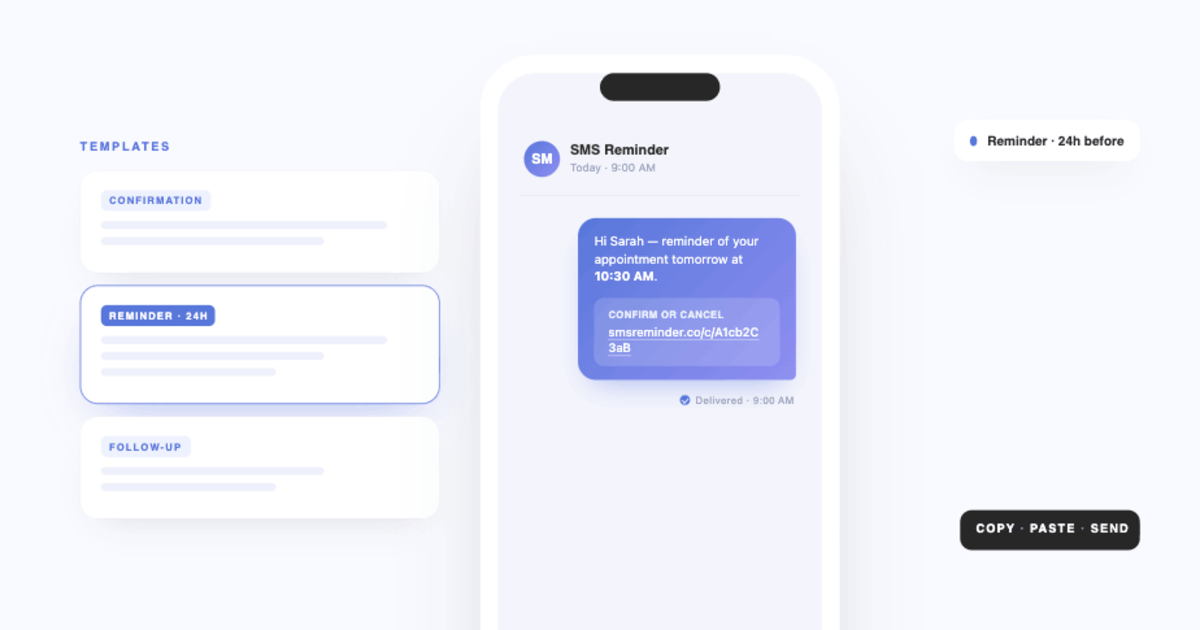
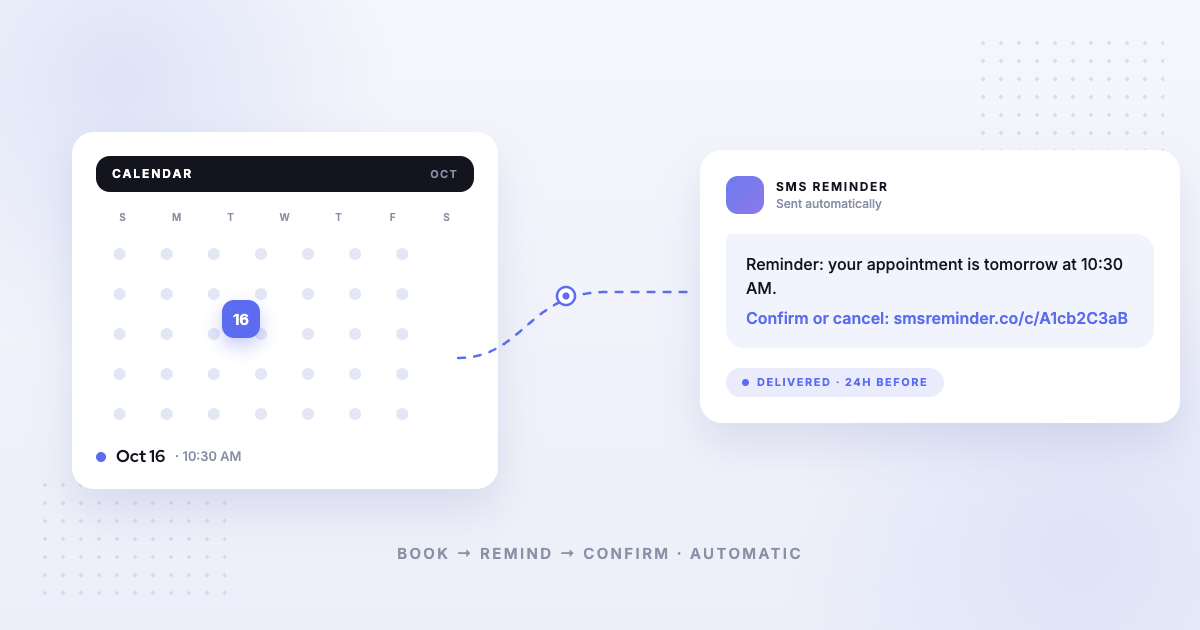
With SMS Reminder, every client gets an automatic text before their appointment, generated from your Google Calendar event. From that message they can:
- Confirm — reply to the SMS, or tap the link in the reminder.
- Cancel — the same way, freeing the slot as early as possible.
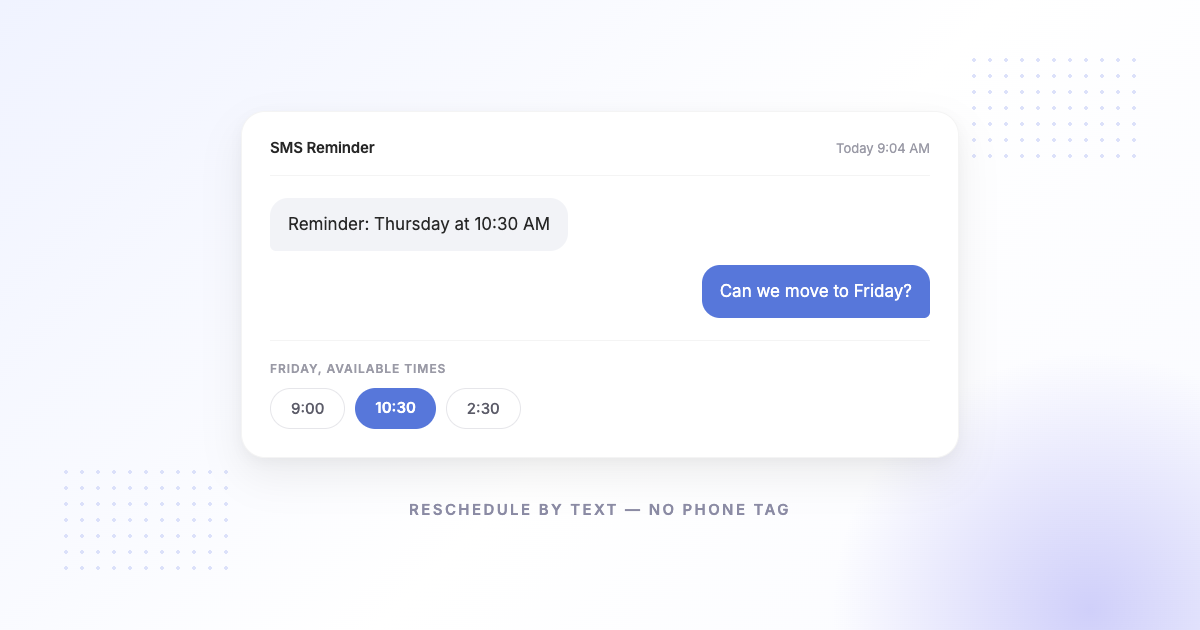
- Ask to reschedule — reply in plain language; the app responds, and the client picks a new time on the booking page.
The key detail: the reminder starts the conversation, and the new time is confirmed on the booking page. Your client drives the whole change themselves, and it syncs back to your Google Calendar.
Why this cuts no-shows
A missed appointment is usually a client who couldn’t make the original time and had no easy way to say so. Give them a one-tap way to move it, and two things happen: the appointment gets rebooked instead of lost, and the original slot frees up early enough that you can fill it. Confirmations and cancellations by reply mean you always know where each appointment stands, rather than finding out when someone doesn’t turn up.
What clients can and can’t do by text
| Action | How it works |
|---|---|
| Confirm the appointment | Reply to the SMS or tap the link |
| Cancel the appointment | Reply or tap the link |
| Ask to reschedule | Reply in plain language; app responds |
| Pick the new time | On the booking page |
| Book a brand-new appointment | Via your self-scheduling booking page |
How to set it up
- Connect your Google Calendar. SMS Reminder links to the calendar you already use — no migration.
- Choose when reminders go out. Set your lead time (for example, 24 hours and 2 hours before).
- Turn on two-way replies. Clients can confirm, cancel, or ask to reschedule straight from the reminder.
- Share your booking link so clients can pick new times — and new clients can self-book — into your calendar.
You’ll be live in minutes, and appointment changes stop landing on your phone.
Get started free and let clients manage their own appointments by text.
Frequently asked questions
Can clients reschedule an appointment just by replying to a text?
Clients reply to the reminder to ask for a new time, and the app responds; they confirm the new time on the booking page. The reply starts the reschedule — the booking page completes it.
Do clients need an app to reschedule?
No. Everything happens through the text message and a web booking page — no app to download.
Does the change sync to my Google Calendar?
Yes. Bookings and changes made through SMS Reminder sync with your Google Calendar.
What if a client cancels instead of reschedules?
They can cancel by replying or tapping the link, which frees the slot early so you have the best chance to fill it.