On this page
Most salons don’t need to move their diary to a new platform to take online bookings. If your appointments already live in Google Calendar, a booking app connected to it can let clients book themselves, keep each stylist’s calendar separate, and send the text reminder that stops the six-week colour turning into a no-show.
Short answer
A salon booking app that syncs with Google Calendar should put every service on one link, book each appointment into the right stylist’s calendar, leave time for clean-up, and text clients before they arrive.
SMS Reminder does that on top of the Google Calendar you already use. You get unlimited appointment types on every plan,1 each one linked to its own stylist calendar,2 minimum notice and buffers per appointment type,3 and SMS reminders on every booking.4 It doesn’t take payments or deposits, so if you need those, a full salon platform will fit better (more on that below).
What a salon needs from a booking app
| What you need | Why it matters in a salon | In SMS Reminder |
|---|---|---|
| Every service bookable | Cuts, colour, treatments and add-ons all run different lengths | Unlimited appointment types on every plan, one for each service and length1 |
| Each stylist’s own calendar | Clients book a person, not just a time | Each appointment type books into its own synced Google Calendar2 |
| Clean-up and processing time | Back-to-back colour bookings run late | Buffers before or after appointments3 |
| No surprise same-day bookings | You need time to prep and order product | Minimum notice in minutes, hours or days3 |
| Text reminders | The furthest-ahead bookings are the ones clients forget | SMS reminder templates per appointment type4 |
| Easy rescheduling | Fewer calls and DMs to move a booking | Clients reschedule from the confirmation page5 |
| Your look | The booking page is often a client’s first impression | Your logo and brand colour, on every plan6 |
How to set up salon booking on Google Calendar
- Connect your Google Calendar in the SMS Reminder web app and tick each stylist’s calendar under Settings → Calendars.
- Set your opening hours in Settings → Booking Page. The booking page uses one weekly schedule, so block stylists’ days off with Busy events in their calendars.7
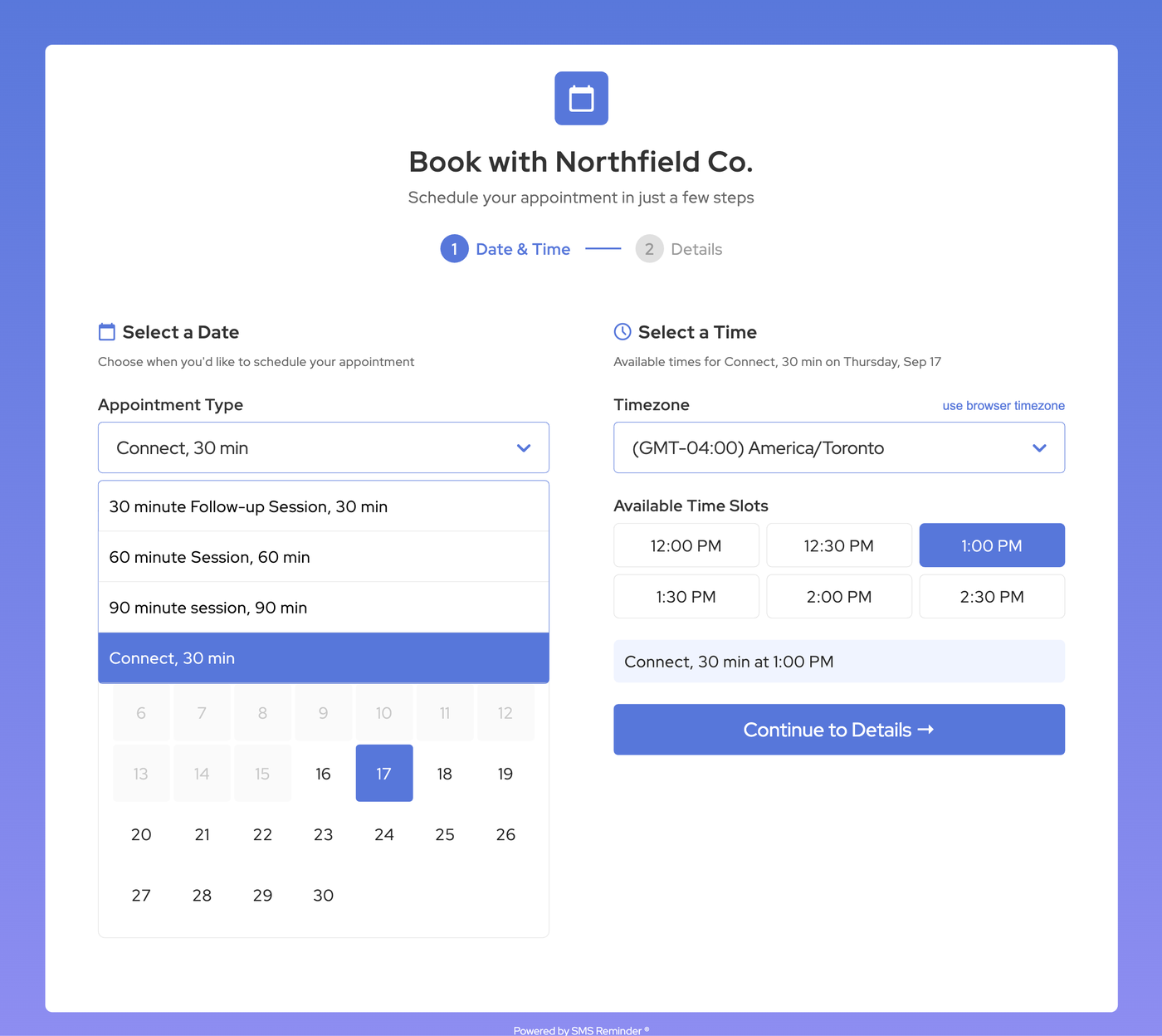
- Create an appointment type for each service, with its duration, the calendar it books into, minimum notice and buffers. A full colour might take 120 minutes with a 15-minute buffer after; a fringe trim, 15 minutes with none.1,3
- Pick a reminder template for each appointment type so every booking gets its texts automatically.4
- Share your booking link in your Instagram bio, on your website’s Book Now button, or with the WordPress booking plugin.
The full walkthrough, with screenshots, is in how to set up a booking page for Google Calendar.
How to book for several stylists from one link
With SMS Reminder, one booking link covers the whole salon: create an appointment type for each stylist and service, and link it to that stylist’s Google Calendar.2
| Appointment type | Books into |
|---|---|
| Cut and finish with Sam | Sam’s calendar |
| Full colour with Priya | Priya’s calendar |
| Brow shape with Lee | Lee’s calendar |
Clients pick on one page, and the booking lands in the right calendar. How many calendars you can sync depends on your plan: Basic 2, Starter 5, Business 10, Enterprise 20 and Premium unlimited.2 The free plan covers a booking page on your primary calendar for 1 user,8 which suits a solo stylist or booth renter.
When a full salon platform fits better
A booking page on Google Calendar is the lighter option. A full salon management platform may suit you better if you need:
- Payments or deposits at booking. SMS Reminder doesn’t take payments.
- Clients to self-book standing appointments. The booking page takes one-off appointments; recurring appointments you create in Google Calendar still get reminders.7
- Point of sale, stock or payroll in the same tool.
If your diary already works in Google Calendar and the gaps are online booking and no-shows, adding a booking page and text reminders keeps the setup simple. See how it fits the rest of a salon’s week on our salons and beauty page, or compare Google Calendar’s own appointment schedules with a booking app.
Ready to try it? Connect your Google Calendar and set up your first appointment types.
Frequently asked questions
What’s a good booking app for salons that syncs with Google Calendar?
If your salon already runs its diary in Google Calendar, SMS Reminder adds a booking page that books straight into it: unlimited appointment types for every service on every plan, one link that books into each stylist’s calendar, buffers for clean-up, minimum notice, and SMS reminders on every booking. If you need payments, deposits or stock and payroll tools, a full salon management platform will fit better.
Can each stylist have their own calendar on one booking link?
Yes. With SMS Reminder, create an appointment type for each stylist and service, such as Cut with Sam or Colour with Priya, and link it to that stylist’s Google Calendar. Clients choose on one booking page and the booking lands in the right calendar. How many calendars you can sync depends on your plan.
Can I add clean-up or processing time between salon appointments?
Yes. Add a buffer before or after appointments on each appointment type, and open times that overlap a buffer aren’t offered. A colour can carry a longer buffer than a fringe trim.
Can clients book a standing appointment, like a colour every six weeks?
Not on the booking page. It takes one-off appointments. Create standing appointments in Google Calendar as you do now, and each one can still get its own SMS reminder.
Do salon clients get a text reminder after booking online?
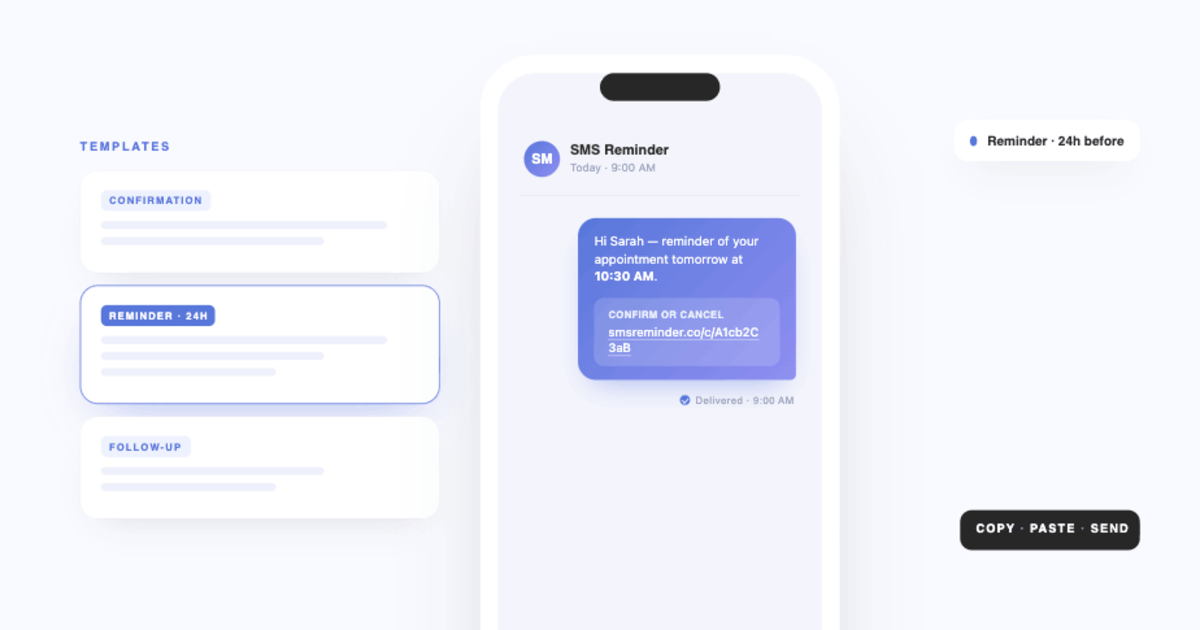
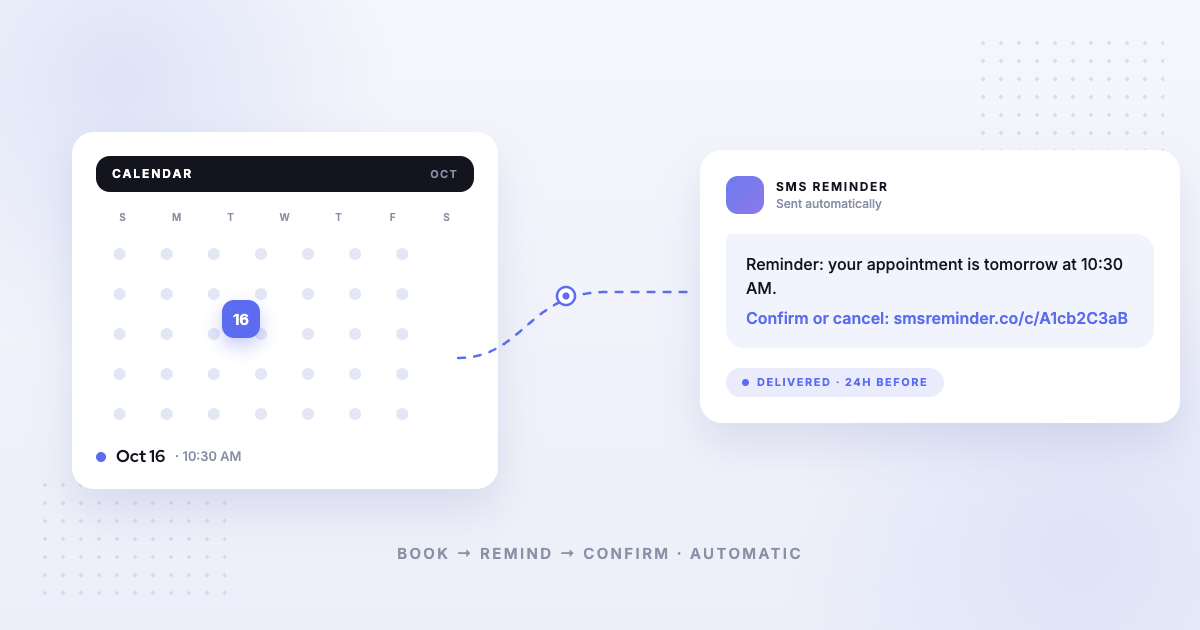
Yes, if you choose an SMS reminder template on the appointment type. Reminders are then scheduled automatically for every booking made through it, and clients can reply to confirm, cancel or ask to reschedule.
Sources
SMS Reminder details come from our help centre.
- SMS Reminder Help — Create unlimited appointment types for your booking page.
- SMS Reminder Help — Setting up appointment booking for multiple calendars.
- SMS Reminder Help — Appointment notice periods & buffers.
- SMS Reminder Help — Automatically send SMS reminders on booked appointments.
- SMS Reminder Help — Allow clients to reschedule appointments.
- SMS Reminder Help — Add your logo and brand colour to your booking page.
- SMS Reminder Help — Customizing your availability.
- SMS Reminder — Pricing.