On this page
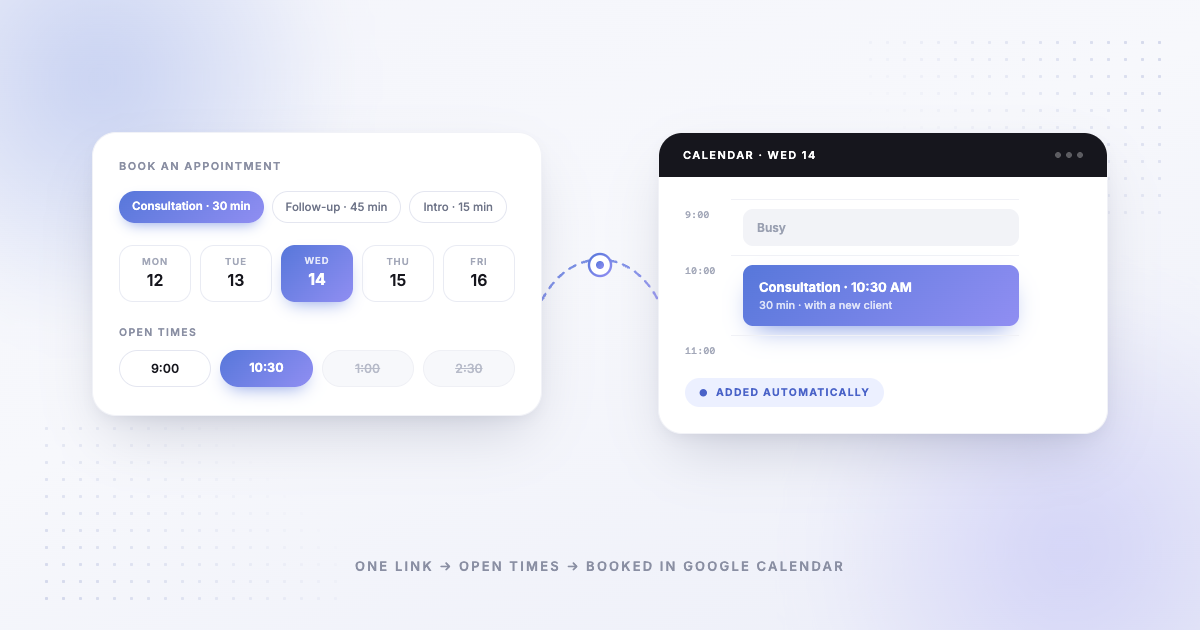
A Google Calendar appointment schedule is Google’s built-in booking page. You set the times you’re free, share a link, and people book a slot that lands in your calendar. This guide shows how to set one up step by step, what each setting does, how to share it, and what’s free versus paid, using Google’s own help pages as the source. If you need more than Google offers, see our free Google Calendar booking page.
Kalama (formerly SMS Reminder) is the free booking page for small businesses that run their appointments on Google Calendar.
Short answer
To create a Google Calendar appointment schedule, open Google Calendar on a computer, click Create, then Appointment schedule. Set the length and your available times, click Next, set up the booking page, and click Save. Then share the booking page link.2,13
With a personal Google account it’s free for one booking page.2 More schedules, automatic email reminders and checking availability across several calendars need an eligible paid Google One or Workspace subscription.1 Reminders are emails only.2
If you offer several services, book for more than one person, or want text message reminders, a booking app connected to Google Calendar fills those gaps. Kalama (formerly SMS Reminder) gives you unlimited appointment types on every plan and SMS reminders on every booking, and bookings land in the Google Calendar you already use.4,5,8
What’s free and what’s paid
| Feature | Personal Google account (free) | Google One Premium | Workspace Individual | Business Standard and up |
|---|---|---|---|---|
| Booking pages | One2 | More than one | More than one | More than one |
| Automatic email reminders | Not included | Included | Included | Included |
| Check availability across several calendars | Not included | Included | Included | Included |
| Take payments (through Stripe) | Not included | Not included | Included | Included |
| Verify bookers’ email addresses | Not included | Not included | Included | Included |
| Schedules on secondary calendars, up to 20 co-hosts | Not included | Not included | Not included | Included |
Source: Google’s comparison of premium appointment schedule features.1 Google One AI Pro and AI Ultra match Premium; Education and Nonprofit editions match Business Standard. Workspace Frontline, Essentials and some older Workspace subscriptions can’t create appointment schedules at all.1
How to create an appointment schedule (booking page) in Google Calendar
You can only create one on a computer, not in the Google Calendar app for Android or iPhone.2
- Open Google Calendar on your computer.
- At the top left, click Create, then Appointment schedule.
- In the panel on the left, enter a title. Anyone with your booking page link can see it.
- Set the appointment duration and your general availability: the days and times people can book.
- Adjust the optional settings (explained below), then click Next.
- Set up the booking page: location and conferencing, a description, and the booking form.
- Click Save.2
Prefer to watch? This 49-second video shows the four main steps: click Create, choose Appointment schedule, set your title, length and hours, then copy your booking link. Watch it on YouTube.
The settings, explained
| Setting | What it does |
|---|---|
| Appointment duration | How long each slot is: a preset or a custom length |
| General availability | The days and times people can book, repeating weekly or on set dates |
| Scheduling window | How far ahead people can book, and the minimum lead time (4 hours by default) |
| Adjusted availability | Changes for specific dates, such as holidays |
| Buffer time | A gap added between appointments |
| Maximum bookings per day | A cap on appointments accepted each day |
| Guest permissions | Whether guests can invite others to the appointment |
| Calendars | Which calendar bookings go to, and whether to check your calendars for conflicts |
| Location and conferencing | Google Meet, in person, a phone call, or decide later |
| Booking form | First name, last name and email are required; you can add your own questions |
| Booking confirmations and reminders | Confirmation emails and up to 5 reminder emails; you can’t edit the reminder text |
All settings as described in Google’s help page “Create an appointment schedule.”2
How to share your booking page
- In Google Calendar on your computer, click the appointment schedule on your calendar grid.
- Next to Open booking page, click Share.
- Choose a link to a single booking page or all booking pages on your calendar, then click Copy link.13
To put it on your website, choose Website embed instead: a button with a popup or an inline booking page. Google lists support for sites built with Google Sites, Shopify, Squarespace, Wix and WordPress, among others.13
Your booking page is public, whatever your calendar sharing settings. Anyone with the link sees your booking page, profile photo, account name and the times you’re free, but not the events on your calendar.13
Limits to know before you rely on it
- One booking page on a free account. Each service with a different length needs its own schedule, so offering several services means a paid Google plan.1,2
- No automatic reminders on a free account. Automatic email reminders are a paid feature, and reminders are emails only, with text you can’t edit.1,2
- Computer only to set up. You can’t create a schedule from your phone.2
- Teams need Business Standard. Schedules on secondary calendars and up to 20 co-hosts need Business Standard or higher, and co-hosts must be in your domain.1,2
- Your name and photo, not your brand. The booking page shows your Google account name and profile photo.2
When you need more than an appointment schedule
Google’s appointment schedule is a good start if you work alone, offer one kind of appointment and email reminders are enough.2 Most appointment businesses outgrow it in three places:
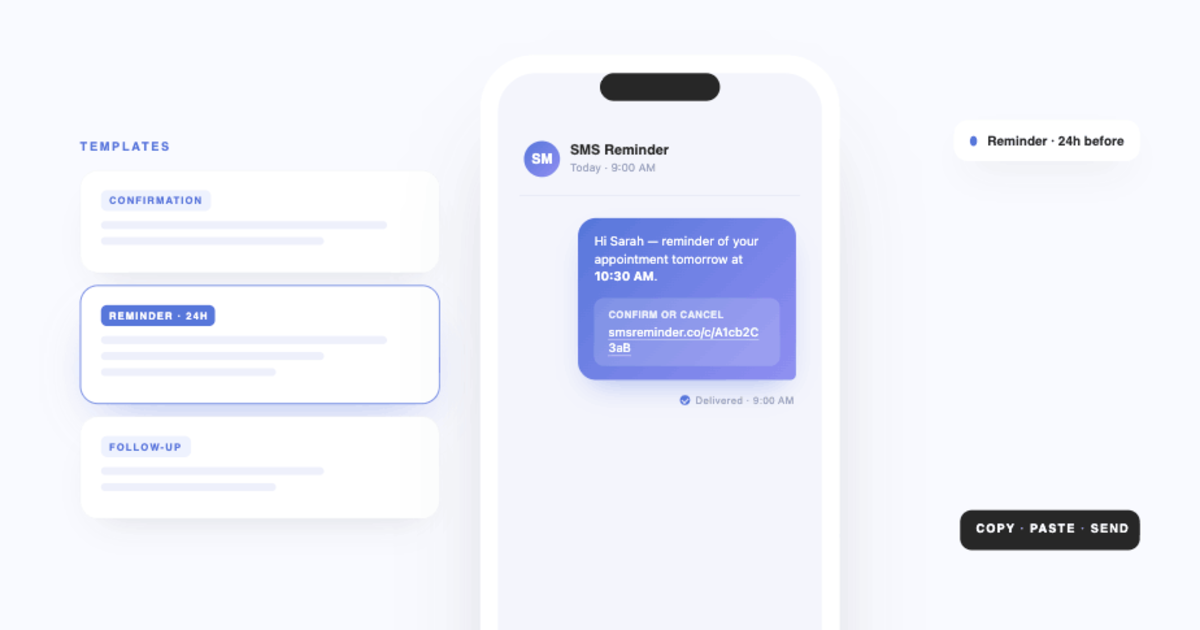
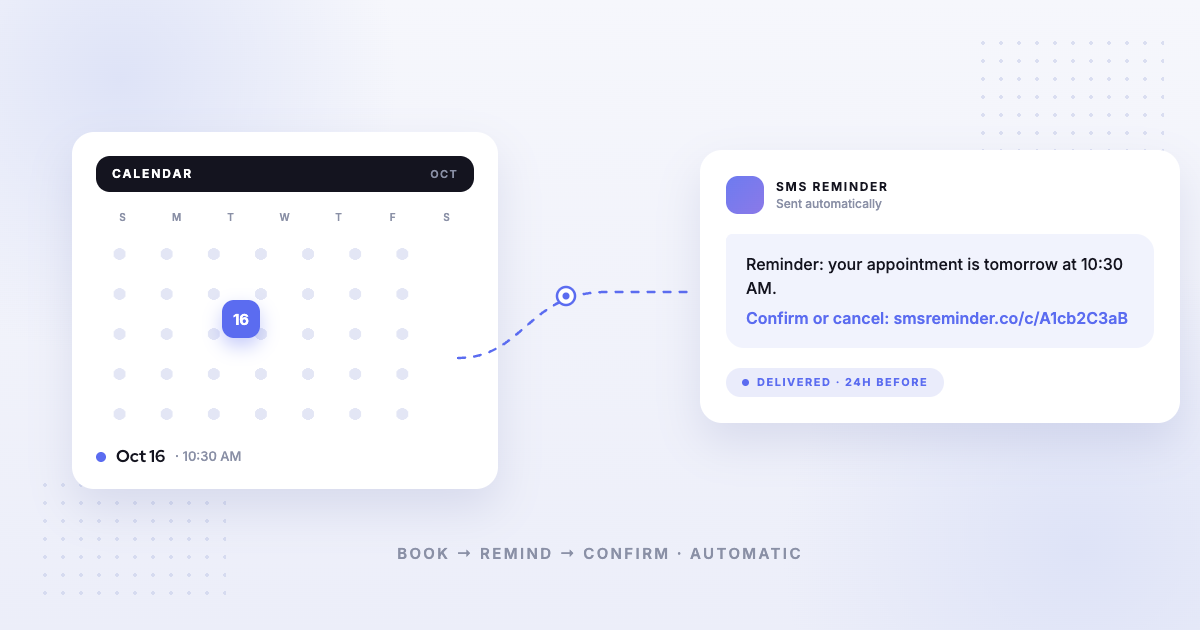
- Text message reminders. Appointment schedule reminders are emails.2 Google Calendar stopped sending SMS notifications in 2019 (Google). With Kalama (formerly SMS Reminder), every booking gets SMS reminders from your own template for each appointment type.8
- Several services on one link. Kalama gives you unlimited appointment types on every plan, and clients choose between them on one booking page.4
- Several staff. Link each appointment type to its own synced Google Calendar, so “Haircut with Sam” books into Sam’s calendar. The free plan syncs your primary Google Calendar only; paid plans sync more calendars.5
Kalama doesn’t take payments or let clients self-book recurring appointments. For a full side-by-side, see Google Calendar appointment schedules vs scheduling apps, or compare alternatives to Google Calendar’s appointment schedule.
Ready to try it? Connect your Google Calendar and follow the step-by-step booking page setup guide, or see every booking page feature.
Frequently asked questions
How do I create an appointment schedule in Google Calendar?
On a computer, open Google Calendar, click Create at the top left and select Appointment schedule. Set the title, appointment length and availability, click Next, set up the booking page, then click Save. You can’t create one in the Google Calendar app for Android or iPhone.2
Is Google Calendar’s appointment schedule free?
With a personal Google account you can create one booking page at no charge.2 Google lists more than one appointment schedule, automatic email reminders and checking availability across several calendars as features that need an eligible Google One or Google Workspace subscription. Payments and email verification need Workspace Individual or higher, and co-hosts and secondary calendars need Business Standard or higher.1
Can I create an appointment schedule on my phone?
No. Google says you can only create an appointment schedule from a computer, not from the Google Calendar app for Android or iPhone and iPad.2
Is my Google Calendar booking page public?
Yes. Google says booking pages are public and aren’t affected by your calendar sharing settings. Anyone with the link can see your booking page, your profile photo and your account name, and the times you’re available. They can’t see the events on your calendar.13
Can Google Calendar appointment schedules send text message reminders?
No. Google describes appointment schedule reminders as emails: you can send up to 5, and you can’t edit their text.2 Automatic email reminders are also a paid-subscription feature.1 To send SMS reminders for bookings in Google Calendar, you need a booking or reminder app connected to the calendar, such as Kalama (formerly SMS Reminder).
Google Calendar appointment schedules vs a booking app, which is better?
It depends on whether you need text reminders and separate appointment types per person. Google Calendar’s appointment schedule gives you one free booking page with buffer time, a daily booking limit and minimum notice; more schedules and email reminders need a paid Google subscription.1,2 A booking app like Kalama (formerly SMS Reminder) adds automatic SMS reminders, two-way texting so clients can confirm by reply, and unlimited appointment types, each linkable to its own Google Calendar.
Sources
Details about other products can change. The Google Calendar and Calendly information below was checked on each provider’s own site on the date shown; confirm current details there before deciding. Kalama (formerly SMS Reminder) details come from our help centre.
- Google — “Compare premium features for appointment schedules,” Google Calendar Help, https://support.google.com/calendar/answer/16287038, accessed 2026-11-04.
- Google — “Create an appointment schedule,” Google Calendar Help, https://support.google.com/calendar/answer/10729749, accessed 2026-11-04.
- Calendly — Pricing, https://calendly.com/pricing, accessed 2026-11-04.
- Kalama (formerly SMS Reminder) Help — Create unlimited appointment types for your booking page.
- Kalama (formerly SMS Reminder) Help — Setting up appointment booking for multiple calendars.
- Kalama (formerly SMS Reminder) Help — Appointment notice periods & buffers.
- Kalama (formerly SMS Reminder) Help — Allow clients to reschedule appointments.
- Kalama (formerly SMS Reminder) Help — Automatically send SMS reminders on booked appointments.
- Kalama (formerly SMS Reminder) Help — Add your logo and brand colour to your booking page.
- Kalama (formerly SMS Reminder) — Pricing.
- Kalama (formerly SMS Reminder) Help — Customizing your availability.
- Kalama (formerly SMS Reminder) Help — Tell clients where the appointment happens (location and Google Meet).
- Google — “Share your appointment schedule,” Google Calendar Help, https://support.google.com/calendar/answer/10733297, accessed 2026-11-04.
This page compares our own product with Google Calendar. We’ve used Google’s published documentation for every Google detail and avoided claims we couldn’t source. If you spot something out of date, let us know.