A free appointment booking page for your Google Calendar.
Share one link with unlimited appointment types. Clients pick a service and an open time, and the booking lands in your Google Calendar — no back-and-forth messages, no double-bookings. Add your logo and brand colour, and a location or Google Meet link to every booking. Booking is free, and stays free: SMS reminders are the paid layer.
What is the SMS Reminder booking page?
The booking page is an online scheduling link connected to your Google Calendar. You set the hours you take bookings and the appointment types you offer; clients open your link, choose a type and an open time, and the appointment is added to your calendar automatically. Anything already marked Busy in Google Calendar is never offered, so the page only shows times you can actually take.
Because it lives inside Kalama (formerly SMS Reminder), every booking can also get automatic text reminders — so the client who booked on Tuesday still remembers on Friday.
Setting one up for the first time? Follow the step-by-step booking page setup guide.
Every service on one booking page. No cap.
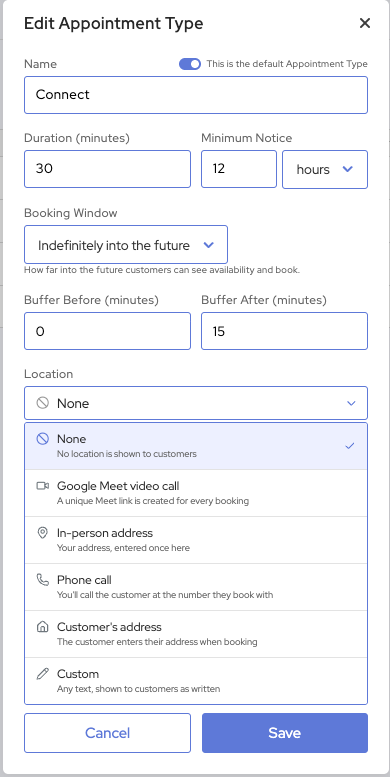
A 30-minute consult, a 60-minute session, a 90-minute deep dive, a quick follow-up — create as many appointment types as your business needs. Each one gets its own duration, notice period, buffers, Google Calendar and reminder template, and clients choose between them from a single link.
Some booking apps limit this. Calendly’s free plan, for example, includes one event type, with unlimited event types on its paid plans.1
How to set up your appointment types →
Help centre: creating appointment types →
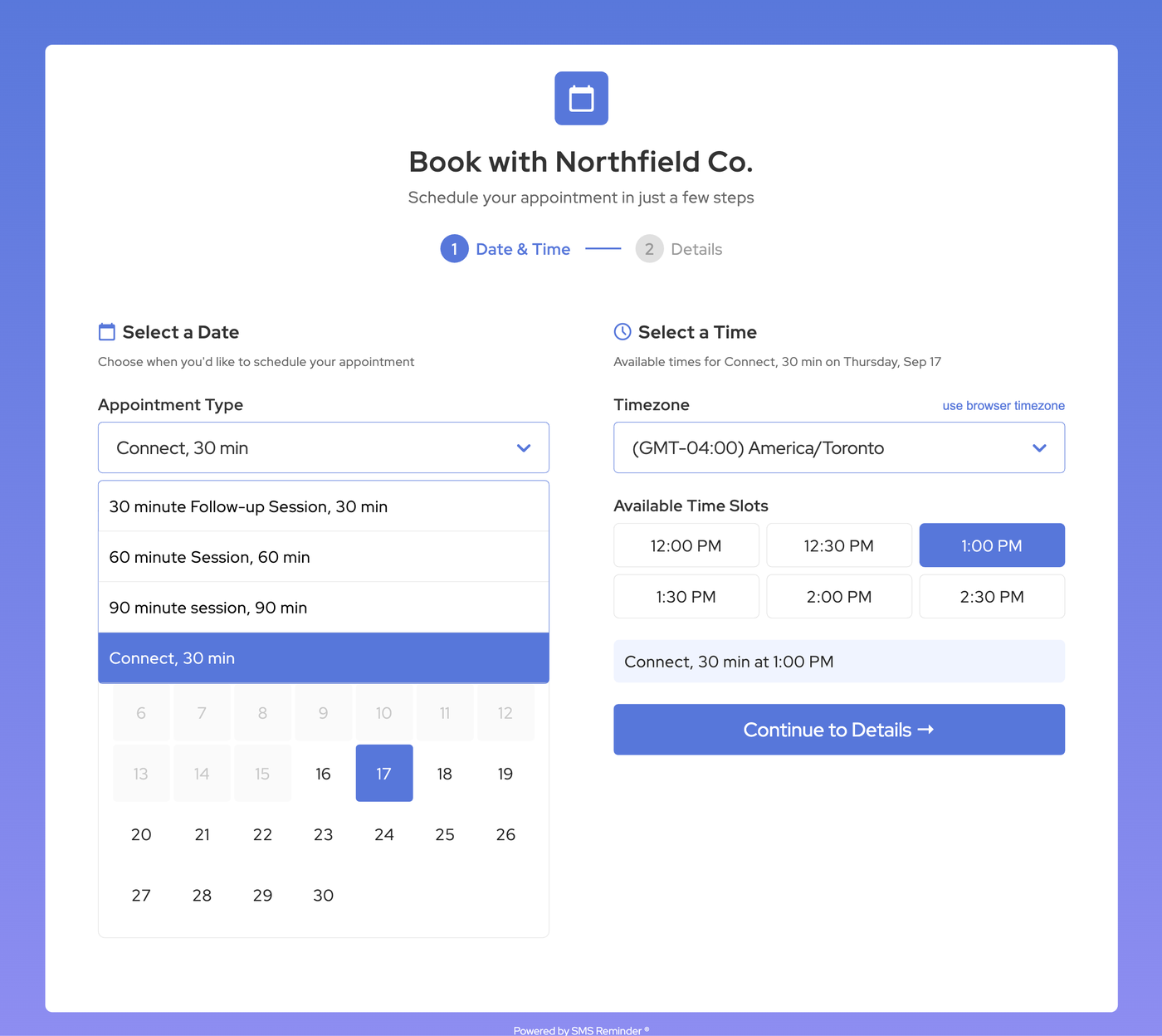
From link to booked, in four steps
A booking page clients finish in a few clicks
Clients choose an appointment type, a date and an open time in their own time zone, then add their details. Only times that fit your availability and your Google Calendar are shown. See the setup guide for where to share your link.
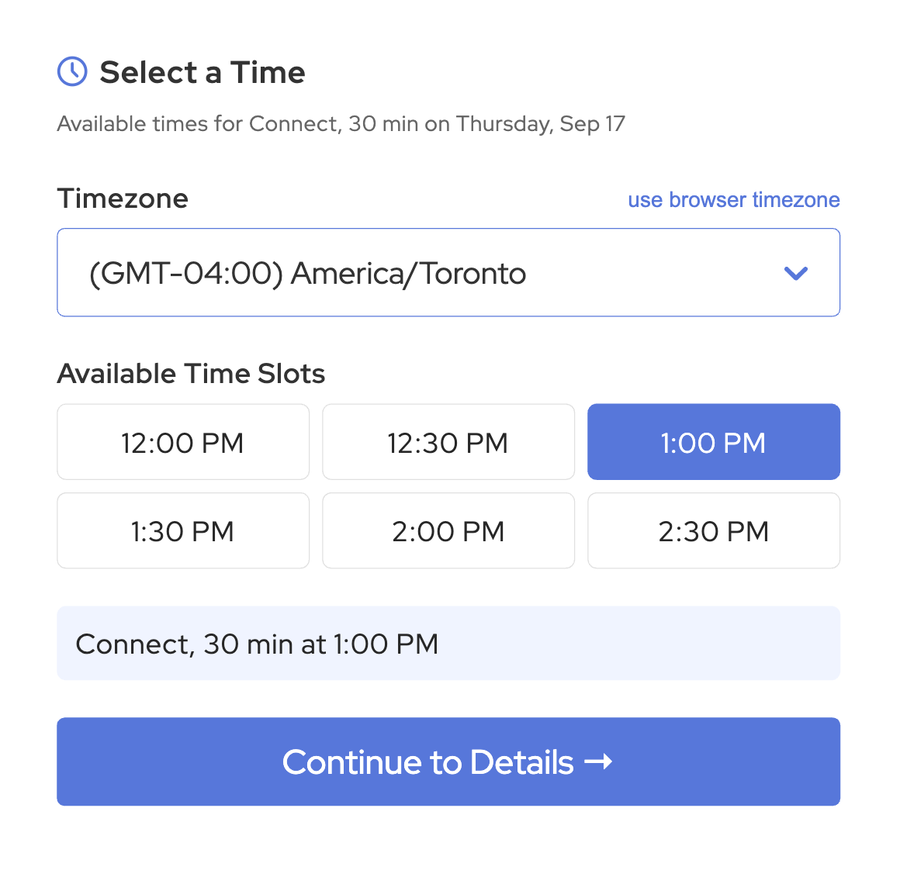
Your logo. Your colour. Your booking page.
Clients should recognise the business they’re booking with. Add your logo and one brand colour, and every client who opens your booking link sees your brand — not ours. It takes about a minute, and it’s included on every plan.
- Your logo at the top of your booking page. Upload a PNG or JPG.
- One brand colour, everywhere it counts — the background, buttons, time slots, selected options and links. Pick a preset or enter your exact hex code.
- Always readable. If a colour would make text hard to read, a slightly lighter or darker shade is used for that text or button automatically.
- Preview before it goes live. Try colours freely; clients only see changes after you save.
- Consistent wherever you share it — your shared booking link and the booking widget on your website.
Help centre: add your logo and brand colour →
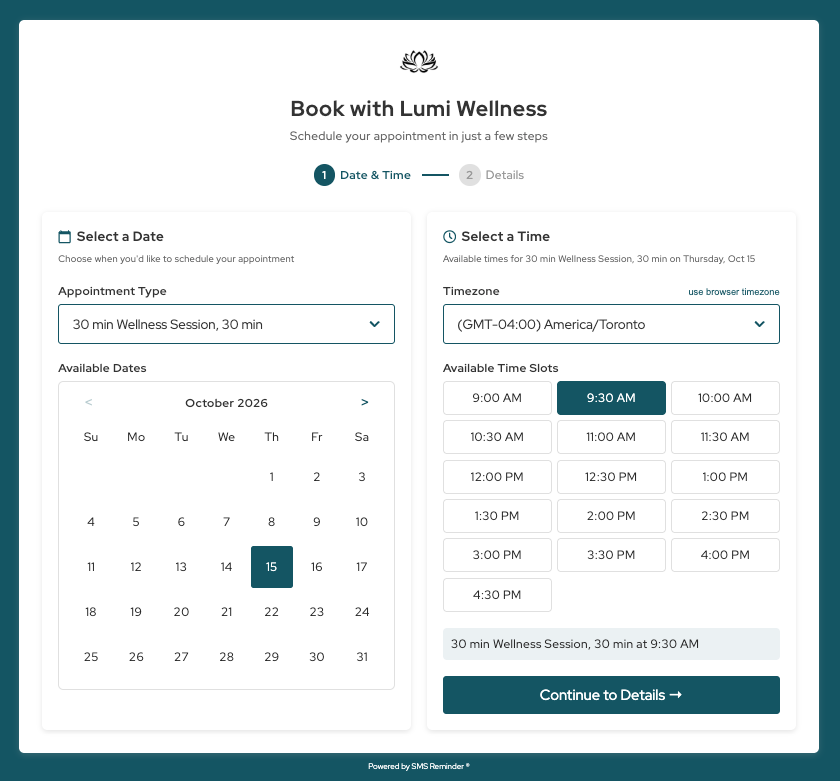
Every booking says where to be.
“Is this online or at your office?” is a question clients shouldn’t have to ask. Give each appointment type a location and it travels with every booking — free on every plan.
- Google Meet video call — every booking gets its own Meet link, created for you.
- In-person address — enter it once; clients can tap it to open it in Maps.
- Phone call — you call the client at the number they book with.
- Customer’s address — clients enter their address when they book. Made for cleaners, trades, mobile services and home visits.
- Custom — any text you like, such as “Coworking hub, 2nd floor. Enter through the back gate.”
Clients see the location on the confirmation page and in their confirmation email, and it’s added to your
Google Calendar event. Add {eventlocation} or {videolink} to your reminder
template and your SMS reminders say where to go too. If a client reschedules, the location and Meet link stay the same.
Help centre: set a location or Google Meet link →
Everything you need to take bookings online
How the booking page handles the edge cases
A booking is only half the job
The further ahead someone books, the easier it is to forget. Link an SMS reminder template to an appointment type and Kalama (formerly SMS Reminder) texts the client before every booking made through it. Clients can reply to confirm or cancel, or ask to reschedule and pick a new time on your booking page.
Common questions about online booking
Best booking page app for Google Calendar
Free appointment booking page for small businesses
Is there a limit on how many appointment types I can create?
Can I add my logo and brand colour to my booking page?
Can I add a Google Meet link to bookings automatically?
How do clients know where the appointment is?
Can clients enter their own address when they book?
Does the booking page work with Google Calendar?
Can I use one booking link for several staff members or locations?
Booking page with minimum notice and buffer times between appointments
How do I stop clients booking my lunch break?
Can clients reschedule their own appointment?
Can clients book a recurring appointment?
Do booked appointments get SMS reminders?
How do I add booking to my website?
Details about other products can change. The comparison above was checked on the provider’s own site on the date shown — confirm current information there before deciding.
- Calendly — Pricing, calendly.com/pricing, accessed 2026-09-16.
- Google — Compare premium features for appointment schedules, support.google.com/calendar/answer/16287038, and Create an appointment schedule, support.google.com/calendar/answer/10729749, accessed 2026-10-05.
Let clients book themselves.
Connect your Google Calendar, set your hours, and share your booking link today.
Set up your booking page