Quick answer
SMS appointment reminders are automatic text messages sent to clients before an appointment — usually with the date, time, business name, and a way to confirm or cancel. They exist to reduce no-shows, which are one of the biggest hidden costs for appointment-based businesses. The simplest way to send them is a dedicated tool that connects to your existing calendar: SMS Reminder links to your Google Calendar in minutes, sends reminders automatically, and lets clients reply to confirm, cancel, or reschedule — no new booking system to learn.
What are SMS appointment reminders?
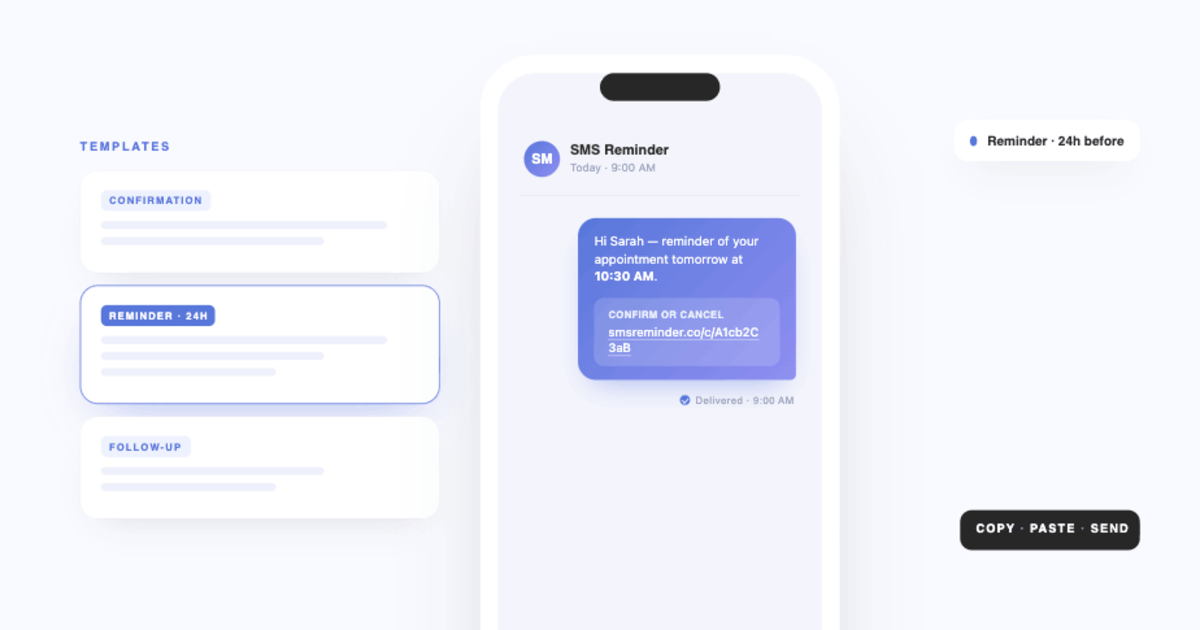
An SMS appointment reminder is a text message a business sends automatically ahead of a booked appointment. A typical reminder includes the client’s name, the appointment date and time, the business name, and a simple way to respond.
Unlike a calendar notification — which only alerts you — an SMS appointment reminder goes to the client’s phone, where it’s far more likely to be seen in time to act on. That’s why appointment-based businesses (clinics, salons, consultants, trades, and service providers) rely on them to keep their schedules full.
Why SMS appointment reminders reduce no-shows
Text messages tend to be read soon after they arrive, which suits reminders that are easy to miss in a crowded email inbox. A well-timed reminder gives clients a nudge while there’s still time to keep or move the appointment.
For appointment-based businesses, reducing missed appointments can meaningfully affect revenue. In an internal SMS Reminder customer survey (August 2025), the median estimated cost of a single missed appointment was $175. Actual results vary, but even a small drop in no-shows adds up quickly across a full calendar.
How to send SMS appointment reminders
You don’t need to text clients by hand. A dedicated tool automates the whole flow:
- Connect your calendar (SMS Reminder connects to Google Calendar via a standard secure sign-in — no code)
- Set a message template and reminder timing (for example, 24 hours and 1 hour before)
- Add a client phone number to each appointment, or connect a booking page
- Reminders send automatically before every appointment
- Clients confirm, cancel, or ask to reschedule — by replying to the text or tapping a link — and the status updates automatically
Most users are up and running in about ten minutes. For a step-by-step walkthrough, see the full setup guide.
Two-way (conversational) appointment reminders
The most useful appointment reminders aren’t one-way broadcasts — they let the client respond. With two-way texting enabled, a client can simply reply “Yes”, “Can we do Friday?”, or 👍, and SMS Reminder reads the reply and responds automatically (in English, French, Spanish, Italian, Portuguese, and German). No app to download, and no need to script an exact keyword.
This matters because it removes friction: a client who can confirm with a one-word reply is far more likely to respond than one who has to open a link or call back. Rescheduling requests are picked up too, and the new time is finalized on the confirmation page.
What to look for in an SMS appointment reminder tool
- Works with your existing calendar — ideally a direct integration (like Google Calendar) rather than a Zapier bridge that adds delay and points of failure
- Automatic sending — new appointments should trigger reminders with no manual step
- Customisable templates — control the exact wording, with dynamic fields for name, date, time, and location
- Flexible timing — send more than one reminder at different lead times
- Two-way replies — clients should be able to confirm, cancel, or ask to reschedule by simply replying, not just by tapping a link
- Simple setup — no API keys or developer involvement
Best practices for SMS appointment reminders
Send at least two. A 24-hour reminder gives clients time to reschedule without penalty; a 1–2 hour reminder catches day-of forgetfulness.
Keep messages short. Aim for under 150 characters so the message doesn’t split into two segments. Include the client name, date, time, and business name — skip the rest.
Always offer a response. Give clients an easy way to confirm or cancel. A reminder they can reply to gives you a clear signal of who’s still coming.
Match timing to your cancellation policy. If you charge for late cancellations, send the first reminder before that window opens so clients can act without a penalty.
Getting started
- Set up automatic SMS appointment reminders: Start your free trial
- Full step-by-step setup: smsreminder.app/install-sms-reminders-google-calendar
- Prefer to read first? See how to send Google Calendar to SMS
Frequently asked questions
What is an SMS appointment reminder?
An SMS appointment reminder is an automatic text message sent to a client before a scheduled appointment. It typically includes the date, time, and business name, and often a way to confirm, cancel, or reschedule — so fewer people forget or no-show.
How do I send SMS appointment reminders?
Connect your calendar to an SMS appointment reminder tool like SMS Reminder, set a message template and reminder timing, and add a client phone number to each appointment. From then on, reminders send automatically before every appointment — no manual texting.
Can clients reply to an SMS appointment reminder?
Yes. With two-way texting set up, clients can reply in plain language to confirm, cancel, or ask to reschedule, and SMS Reminder responds automatically. They can also confirm or cancel by tapping a link in the message — whichever they prefer.
How many appointment reminders should I send?
Most businesses send two: one about 24 hours before, so clients can still reschedule without penalty, and one 1–2 hours before to catch day-of forgetfulness. Two reminders consistently outperform a single message.
Do SMS appointment reminders work with Google Calendar?
Yes. SMS Reminder connects directly to Google Calendar and turns each appointment into an automatic text reminder — no migration to a new booking system and no code required.
Are SMS appointment reminders better than email reminders?
For time-sensitive reminders, texts are usually seen sooner than email, which is easy to miss in a crowded inbox. Many businesses use SMS for the reminder itself and reserve email for longer confirmations or intake details.